
Introduction
One of the most irritating aspects of having a website is that it may sometimes break unexpectedly. For example, one day, a web page was working fine, and the very next day, it did not. Understand this with an example, "One day your Contact Us form is working successfully sending emails to your sales team, and suddenly the very next day it stopped working fine."
Other examples of Website Crash may include: One day, a link on your website to some other website worked fine, but on the next day, it did not. Or today, a customer is able to complete the buying process, and the other day your website broke, and no customer could buy anything. Annoying, right?
But do you know why websites crash? There may be many reasons for a website to break, like improper hosting, lack of updates, and outdated software. It is a question of thought about how a crashed website or a site with problems may affect your business. But, if your website visitors are not able to access the homepage or if they encounter an error message while signing in, you are probably losing money by losing customers.
When you are investing in a new website, you should know that there will be some additional costs in the long run. It can be frustrating when your website breaks automatically, even when you did not do anything wrong. Another problem is that when you start a new business, you believe that it will run seamlessly in the long run and will not require any maintenance.
However, this is not true. For the people with such thinking, their sites usually start malfunctioning with time without giving any warning. This is aggravating since the site developers promised that everything up and down was done correctly. Even after this, something fishy happens and leaves you with only one solution, support. Often one of the most time-consuming things.
Being the best responsive website design company for decades, we are experts in web design and development. We are here with a few reasons why your website suddenly crashes or stops working. Before that, let's discuss some of the common website errors we have seen throughout our experience.
How to Detect Website Issues Before They Turn Into Crashes
Many website crashes do not happen suddenly. Small warning signs usually appear first, such as slow loading pages, random errors, or short downtime periods. Identifying the issues early can help you fix problems before visitors even notice them.
Using uptime monitoring tools allows you to keep track of your website's availability around the clock. These tools send alerts whenever your site goes offline. Performance testing platforms like Google PageSpeed Insight or GTmetrix help you measure speed and server response time. Error logs and server reports also highlight technical issues that may otherwise go unnoticed.
Tools such as Google Search Console, Google Analytics, and UptimeRobot provide clear insights into traffic drops, crawl errors, and downtime events.
Regular monitoring works like a health check for your website. Fixing minor issues early prevents costly breakdowns later.
Some Common Website Errors

1. HTTP Errors
HTTP errors can be pretty frustrating at times. We all might have experienced these HTTP errors at least once to date, and we can tell how annoying it could be to browse a website and suddenly hit a wall of HTTP errors.
These error messages are from the web server, indicating that there is something wrong with the website. Common HTTP errors are 401 unauthorized, 403 forbidden, 404 Not Found, 500 Internal Server Error, and 504 Gateway Timeout.
2. Long Metadata
The primary purpose of the page title is to tell visitors what the page is about. The page's title will be cut off by the search engines if it is longer than 70 characters. Likewise, if we talk about meta descriptions, the character count is a maximum of 155 characters. If the word count exceeds the limit, the extra content will be cut and replaced with "...". Cutting off the meta is not as enticing for young consumers to visit your website.
Fortunately, these errors are an easy fix and involve brainstorming for you to come up with keyword-rich meta titles and descriptions. Also, you can tell compact yet detailed information of what your web pages are about.
While understanding why websites crash and how to fix them, stay informed with the latest iPhone app development trends to keep your mobile projects on the cutting edge.
3. Too Long or Too Short on Text
This is a standard error most of the websites have. You don't want too much or too little text on your website. A wordy or busy page may look spammy and can overwhelm the readers. A page with less content may look unprofessional, incomplete. And a sparse website can negatively impact your SEO.
To avoid this, what you can do is to ensure each page has keyword-rich content that provides the users with value and relevant information. Avoid adding content just for the sake of increasing the text unless it provides value to the customers.
4. Duplicate Page Content
Duplicate page content can only compete with each other on your website, and the search engine will give results for only one page instead of all of them. To resolve this error, avoid using the same metadata for more than one web page. Use some online tools to identify any duplicate data that can be edited.
5. Expiring Domain Name
Search engines give results for websites that are trustworthy and established for a long time. If your business has been registered for so many years, it shows your commitment to your business, website, and content.
Keep reviewing your domain registration and get it renewed annually to make sure that your website is not considered spammy.
6. Images with No ALT Text
Search engines tend to process text more than images. So, if your website images are without the ALT text, they would be missed by the search engines. This is another easy fix; simply give keyword-rich descriptive titles to every image of your website. If you want to make this step easier, ensure naming and saving your images properly before uploading.
These were the most common errors you might have or will face at least once in your life. Resolving these may help you get better sales and conversion rates in your business. Next, let us discuss the main reasons why your website breaks and what you can do to fix the crash.
Reasons Why Your Website Breaks All by Itself
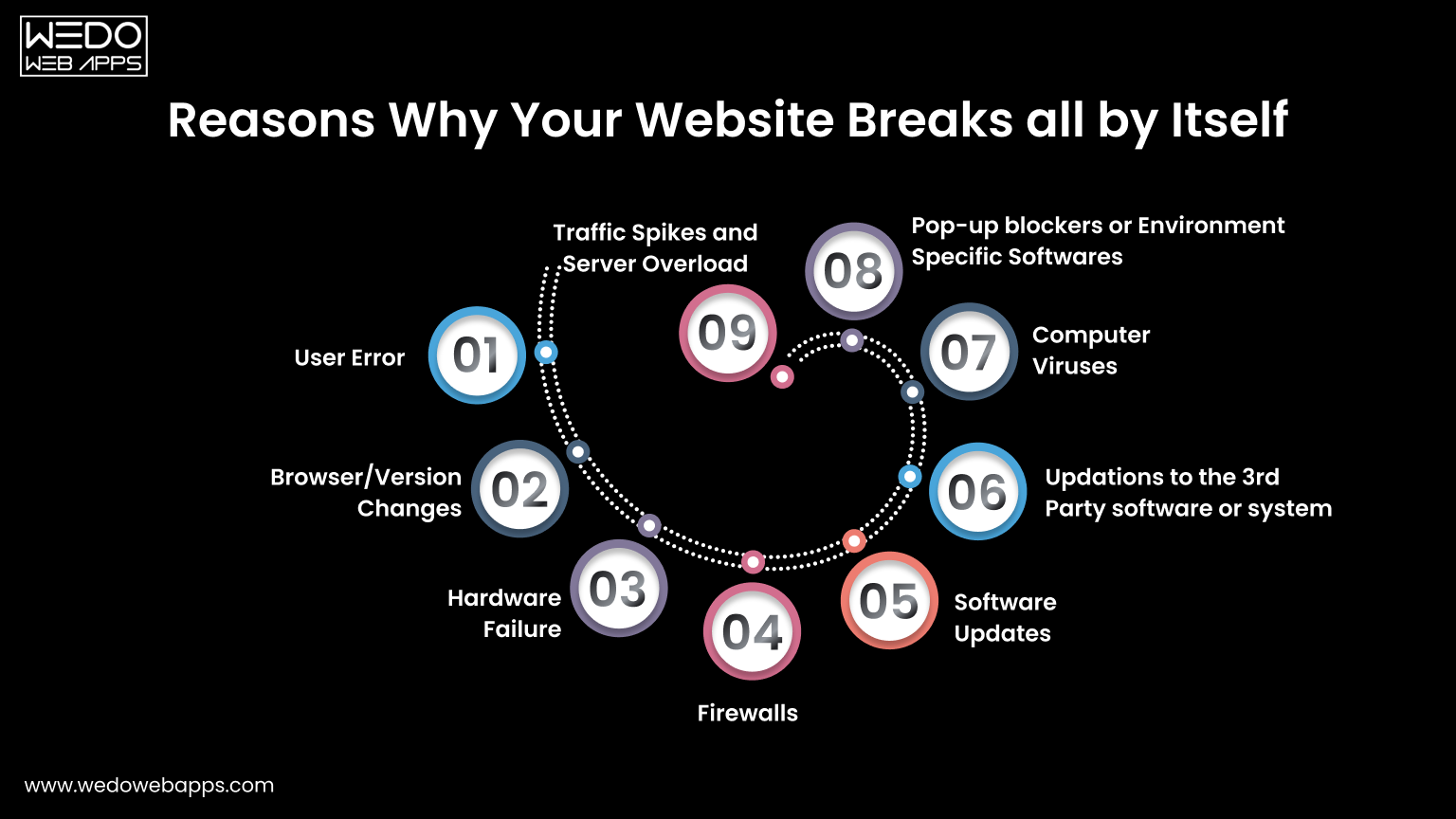
Below are a few reasons why your website appears to break all by itself sometimes:
1. User Error
Content Management Systems these days are powerful things. With the use of CMS like WordPress or Drupal, even inexperienced developers get the potential to manipulate the website as per their choice. Despite the intention of developing the best website, developers sometimes make a change to their website, unaware of the consequences it may have on other parts.
Sometimes it can be very difficult for the support to track the problem and bring it back to action. Too many admins can enable a place for errors in the website. Therefore, we suggest you limit the roles to one or two primary people.
2. Browser or Version Changes
This means the changes in the software that people use to view your website. A website can be future-proof only to some extent. For example, a website may work perfectly fine in Internet Explorer 9 but may show a subtle change in another version of the same browser. This might cause your website to misbehave.
Remember, there are many other browsers, many versions of those browsers, many operating systems, and versions these websites run. In addition, there are several hardware systems on which these software runs. Therefore, changes in any of the above may impact how your website will behave.
3. Hardware Failure
Hardware problems on the server side can interrupt your website without any warning. Issues such as disk crashes, overheating systems, or power supply failures may stop your server from responding properly. When this happens, your website may load slowly, show errors, or go completely offline. Choosing a reliable hosting provider with backup hardware and failover systems helps reduce these risks and keeps your website available.
4. Firewalls
Some organizations, especially government organizations, have very private IT environments. This causes a website to work perfectly outside the organization but may not work or misbehave properly inside the organization.
5. Software Updates
Software updates like security patches specifically need to occur on your website or a software environment present around them. By software environment, we mean operating system, web server, database, or programming language used in your website. Ultimately, changes to any of these components have the rare but true potential to crash your website somewhere somehow.
6. Updates to Third-Party Software or Systems
Even though your website's Contact Us form is working absolutely fine, the third-party mail server that receives and stores the emails is not working correctly. Or maybe your website is integrated with Facebook or any other social media, but social media made a change to the rule.
A third-party software that processes credit cards is facing technical difficulties, or the web page on some other website that you linked to your website is broken as that website went through an update. All these factors may affect your website and can lead to a website crash.
7. Computer Viruses
Viruses or malicious scripts can damage your website files, slow down performance, or redirect visitors to unsafe pages. These infections may enter through outdated plugins, weak passwords, or unsecured hosting environments. Once affected, your website may behave unpredictably or get blocked by browsers. Running regular security scans and installing protection tools helps detect and remove threats early.
8. Pop-up Blockers or Environment-Specific Software
A pop-up blocker or software especially related to the IT environment of the website visitor may hinder your website. For example, anti-virus or parental control software can cause problems on the website. It can even make the website completely disappear even without the user understanding why.
Above are the reasons why you may face a website crash or observe broken links on your website. Next is how you can fix the broken links on your website.
9. Traffic Spikes and Server Overload
A website may also crash when too many visitors try to access it at the same time. This situation is common during festive sales, paid ad campaigns, product launches, or promotional events. While increased traffic is good for business, a limited server capacity can struggle to take the load.
Shared hosting environments often allocate fixed resources. When memory or CPU usage crosses the limit, the server may slow down or stop responding. The visitor then faces errors such as pages not loading or checkout failure.
To avoid these issues, choose a hosting plan that allows resource scaling. Cloud hosting, VPS servers, and load balancing help distribute traffic more evenly. Adding a content delivery network also reduces pressure on your main server. Preparing for peak traffic ensures your website stays accessible when customers are ready to buy.
Above are the reasons why you may face a website crash or observe broken links on your website. Next is how you can fix the broken links on your website.

Steps to Fix Broken Links of Your Website
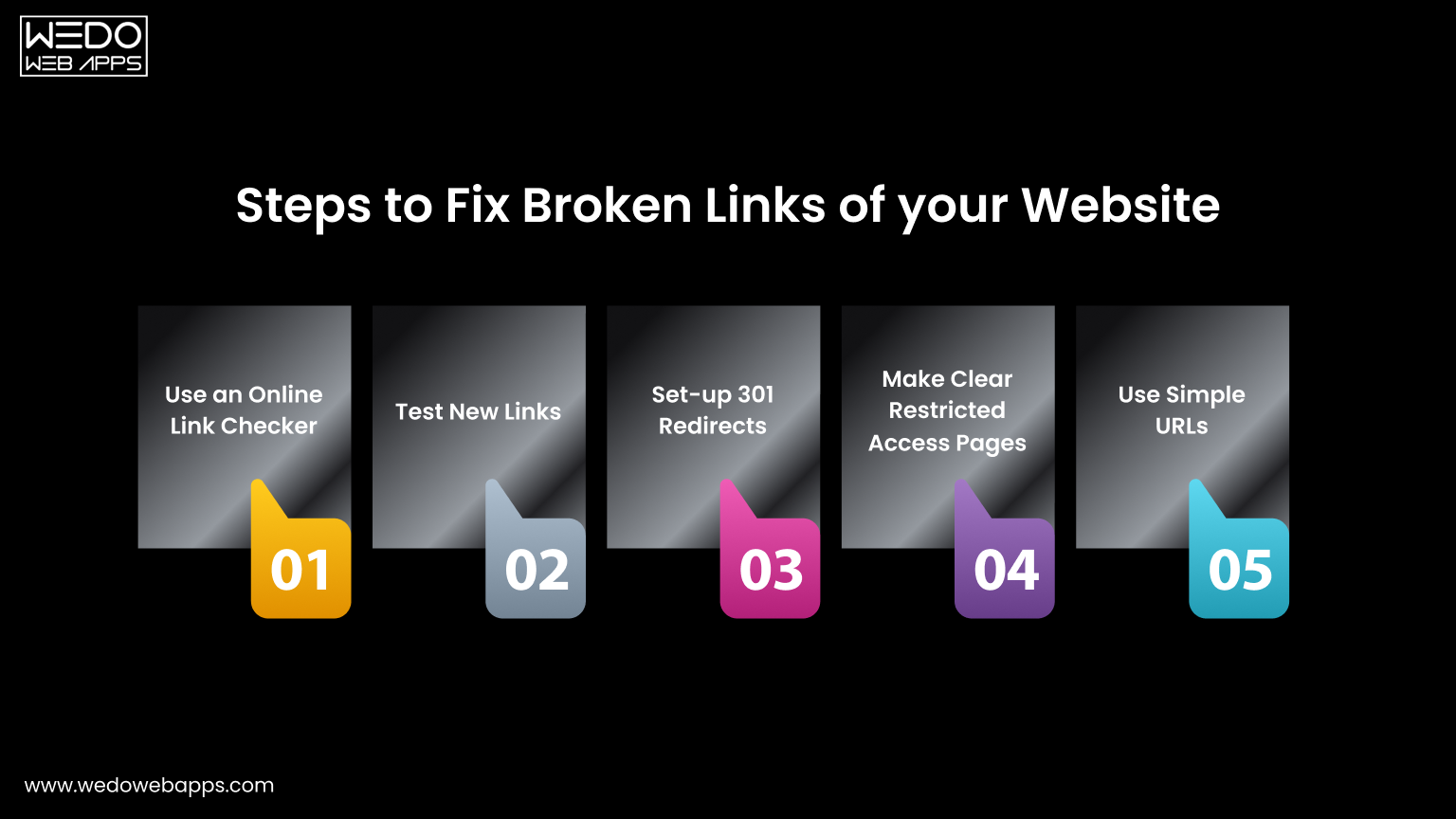
Here are some ways you can use to fix the broken links on your website:
1. Use an Online Link Checker
Firstly, use an online link checker tool to identify whether or not there are any broken links on your website. If yes, the next step is to go to the relevant pages and remove the available broken links. You can also set a reminder for every few months to check and keep the links up to date.
2. Test New Links
Any new blog or a web page link should be tested to ensure they work properly before you publish them on your website. The same can be done with the links in newsletters, emails, or social media.
As you learn how to troubleshoot website crashes, don't miss out on understanding iPhone app development to ensure your mobile apps are built on a solid foundation.
3. Set Up 301 Redirects
If you change or update the URL of any page on your website, ensure setting up 301 redirects. This will help anyone clicking on the old links redirect automatically to the new one. If you are using WordPress, there are plenty of plugins available to set up 301 redirects.
4. Make Clear Restricted Access Pages
The restricted access pages on the website should be made clear. This is to make the users prepared. For example, if a web page is only for admins, add a "member login required" note beside the link.
5. Use Simple URLs
When creating new web pages for any specific products, events, or campaigns, make sure to use simpler URLs so that the users can easily remember and type that particular page.
What Should You Do if Your Website Crashes
The very first thing you can do is not to panic. Just like sometimes electricity goes out, your mobile phone goes out, and even your television sometimes breaks. Everything in this world ultimately has an outage. Website crashes happen, but it is not something to panic about. Instead, try to identify whether it is a web hosting issue, a temporary issue that may get resolved on its own, a technical issue that will require professional help, or your website has been hacked.
It is possible that your website hosting company may be facing an outage. Contacting the web hosting company will quickly resolve your problem, and your website will be back in action. Almost every web host shoots for 99.9% uptime, but sometimes there may be some unforeseen events, and we cannot do anything rather than wait.
If your website shows an "Internal Server Error" message, contact your web hosting company to confirm whether there is any server problem. Probably MySQL server is down, or there was a planned update that caused a problem. Submitting a request to the web hosting company may get your issue resolved quickly.
There is a possibility that there is a plugin update or theme update. Also, the core may have caused the problem, or the developer might have made a mistake. In such cases, it is recommended to contact the web developer who has developed the website.
If your website has been hacked, we would suggest you work with a professional and get your website remediated as soon as possible.
WeDoWebApps LLC is a dedicated, responsive website design company USA offering many other services like mobile app development, digital marketing, and most importantly, we are helping businesses across the globe to improve the security and performance of their websites. Is your website facing a problem? Contact us and share your query; we will do our best to help you resolve the issues on your website.
Website Security Practices That Reduce Downtime
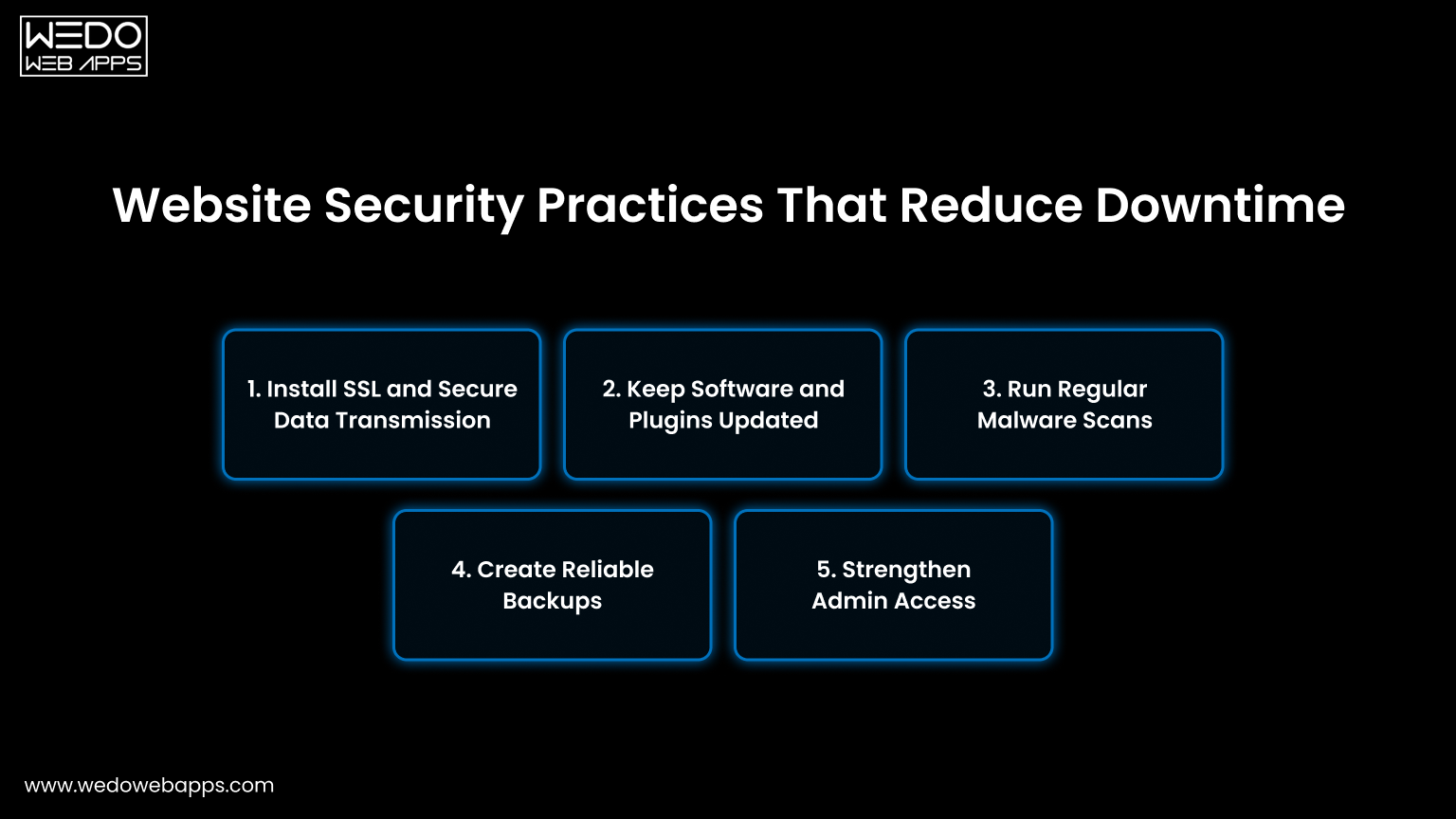
Security issues are a common reason websites stop working without warning. Malware infections, weak access controls, or outdated software can slow down pages or even take the entire site offline.
Taking preventive measures reduces the risk of sudden failure and protects both your business and users.
1. Install SSL and Secure Data Transmission
An SSL certificate encrypts the data shared between your website and visitors. This protects login credentials, payment details, and form submissions while also building user trust.
- Enable HTTPS across all pages.
- Renew certificates before expiry.
- Fix mixed content warnings.
- Redirect HTTP URLs to HTTPS.
2. Keep Software and Plugins Updated
Old CMS versions, themes, and plugins often contain bugs or compatibility issues. Regular updates patch these gaps and keep your website stable with the latest server environments.
- Update the CMS core regularly.
- Remove unused plugins and themes.
- Test updates on staging first.
- Monitor plugin compatibility.
3. Run Regular Malware Scans
Hidden malware can inject harmful code, redirect users, or damage files. Routine scanning helps to detect suspicious activity early so you can act before visitors are affected.
- Use trusted security scanning tools.
- Schedule automatic weekly scans.
- Monitor unexpected file changes.
- Remove infected files immediately.
4. Create Reliable Backups
Backups give you a recovery option when something breaks. Instead of rebuilding the site, you can restore a working version quickly and reduce downtime.
- Set daily or weekly automated backups.
- Store copies off the main server.
- Test restoration periodically.
- Keep multiple backup versions.
5. Strengthen Admin Access
Too many admin users increase the chances of accidental changes or unauthorized access. Limiting permissions keeps your system safer and easier to manage.
- Use strong and unique passwords.
- Enable two-factor authentication.
- Assign role-based responsibility.
- Delete inactive accounts.
Consistent security practices act like routine maintenance. Small checks today prevent larger issues later and help your website stay available for every visitor.

Quick Checklist to Fix a Crashed Website Fast
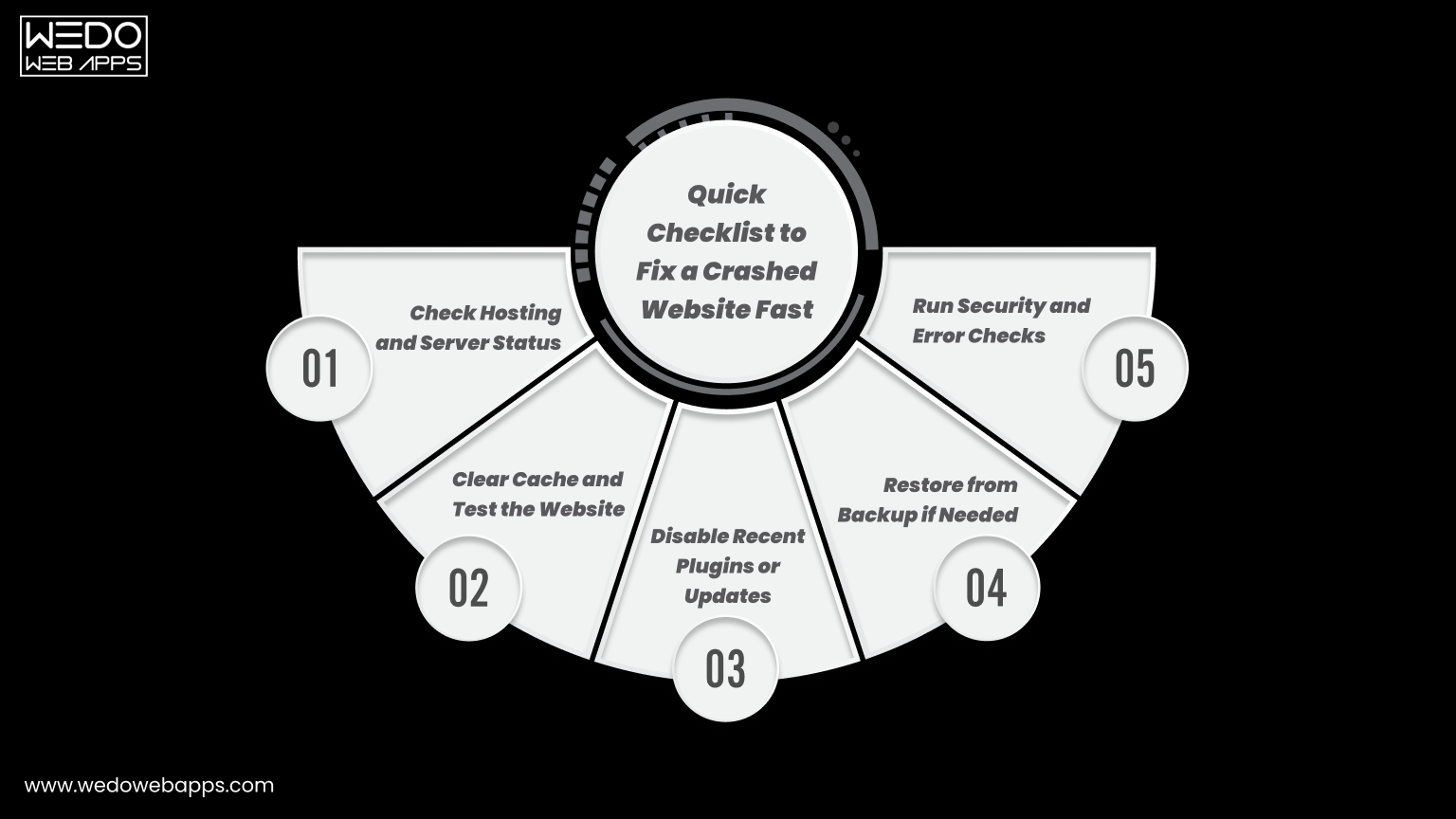
When your website suddenly stops working, time matters. Every minute of downtime can lead to missed inquiries, lost sales, and frustrated visitors. Following a simple troubleshooting checklist helps you identify the cause faster and restore operations with less stress.
1. Check Hosting and Server Status
Sometimes the issue is not within your website but with your hosting provider. Server outages or maintenance can temporarily make your site inaccessible.
- Log in to your hosting dashboard.
- Check server uptime status.
- Review outage notifications.
- Contact hosting support if needed.
2. Clear Cache and Test the Website
Cached files in browsers or servers may display outdated or broken versions of your pages. Clearing the cache often resolves loading issues quickly.
- Clear browser cache and cookies.
- Flush server or CDN cache.
- Test in incognito mode.
- Check on multiple devices.
3. Disable Recent Plugins or Updates
New plugins or recent updates may create conflicts with your theme or CMS. Rolling back changes helps isolate the problem.
- Disable recently added plugins.
- Revert the latest updates.
- Activate the default theme temporarily.
- Test after each change.
4. Restore from Backup if Needed
If the issue persists, restoring a previous working version can bring your website back online quickly. This is often faster than manual fixes.
- Choose the most recent clean backup.
- Restore files and the database.
- Verify forms and links.
- Monitor site performance.
5. Run Security and Error Checks
Technical or security issues may still exist even after restoration. Running quick checks ensures the site remains stable.
- Scan for malware.
- Review server error logs.
- Check database connectivity.
- Confirm all pages load correctly.
This checklist works like first aid for your website. Addressing these steps calmly and in order often resolves most crashes without major disruption.
Conclusion
Website crashes are frustrating, but they are rarely random. In most cases, the cause is linked to hosting limits, outdated software, security gaps, or missed maintenance. Identifying these issues early and following preventive practices can keep your website stable and accessible for visitors.
Regular monitoring, timely updates, strong security checks, and reliable backups work together to reduce downtime. When these steps become part of your routine, your website runs more like a well-maintained system rather than something that breaks unexpectedly.
If managing all of this feels overwhelming, working with an experienced web designer team can save both time and revenue. Professional monitoring and maintenance ensure your website stays online, secure, and ready to serve customers every day.