Introduction
Moving from WooCommerce to Shopify Plus is one of the biggest decisions a growing eCommerce development approaches. But when done right, it sets you up for faster growth, better performance, and fewer technical headaches. But when done wrong, it can cost you SEO rankings, customer data, and revenue.
This guide covers everything you need to know, from deciding whether to migrate, all the way through to launch day and beyond. Whether you are doing it by yourself or hiring a Shopify Plus migration expert, this is your complete playbook.

When Should You Migrate From WooCommerce to Shopify Plus?
Not every store is ready to migrate. But there are clear signs that tell you when it is time to make the move.
Signs Your WooCommerce Store Has Hit Its Ceiling
WooCommerce is a solid platform, but it has limits. Over time, you may notice that managing the platform is taking more time than actually growing your business. Here are the most common warning signs:
- Page load time keeps getting slower despite ongoing fixes.
- Plugin conflicts are breaking features regularly.
- Hosting costs keep climbing as your traffic grows.
- Your checkout experience has not improved in years.
- Your development team spends more time on maintenance than on new features.
If any of these sound familiar, your WooCommerce store has likely hit its ceiling.
The Business Triggers That Make Migration Urgent
Some business situations make migrating from WooCommerce to Shopify not just a good idea but urgent. These include:
- Rapid product catalog growth with a Shopify developer that is straining your database.
- Expanding into international markets that need multi-currency support.
- Launching a wholesale or B2B channel that needs proper account management.
- A funding round or acquisition that requires enterprise-level infrastructure.
- Preparing for a peak season where downtime or slow performance is not an option.
Is Standard Shopify Enough, or Do You Need Shopify Plus?
Standard Shopify works well for stores making up to around $500,000 - $1 million per year. If your store is beyond that or if you need any of the following, Shopify Plus is the right choice:
- Custom checkout scripting
- B2B and wholesale functionality
- Advanced automation via Shopify Flow
- Multiple storefronts from one admin
- A dedicated merchant success manager
The cost difference between Shopify and Shopify Plus is real, but for a store at scale, the return on investment almost always justifies it.
What Actually Happens When You Move from WooCommerce to Shopify: The Full Picture
Moving from WooCommerce to Shopify is not just a platform switch. You are transferring:
- Your entire product catalog
- Customer accounts and purchase history
- Order records and transaction data
- SEO metadata and URL structure
- Payment gateway integrations
- Every plugin and its functionality
When this is done correctly, your customers notice nothing except a faster and cleaner store. When it is done incorrectly, you can lose search rankings, break your checkout, and fragment years of order history.
Who Should Not Migrate Yet (And What to Fix First)
If your WooCommerce development data is messy, like duplicate products, broken image links, incomplete customer records, and inconsistent SKUs, then migrating will just move that mess to a new platform.
Before you migrate WooCommerce to Shopify, make sure you:
- Clean up duplicate or incomplete product data.
- Identify Shopify app replacements for your most critical plugins.
- Audit your customer and order data for gaps.
- Have a clear plan for handling customer functionality.
Migration works best as a planned upgrade, not a rescue operation.

WooCommerce vs Shopify Plus: Total Cost of Ownership Compared
Most people compare WooCommerce and Shopify Plus by subscription price alone. That is the wrong comparison. When you look at the total cost of Shopify website development with ownership, the picture looks very different.
WooCommerce Hidden Costs: Hosting, Maintenance, Plugins & Dev Hours
WooCommerce is free to install, but running it at scale is not. Here is what a typical mid-to-large WooCommerce store actually pays:
- Managed Hosting: $200-$1,500 per month, depending on traffic.
- Plugin License and Renewals: $2,000-$8,000 per year.
- Developer Hours: For updates, security patches, and plugin conflicts, 10-20 hours per month.
- Performance Optimization: Works on the ongoing quarterly cost.
- Security Incidents: Major core updates that break compatibility, unpredictable spikes.
These costs add up fast, and they are often invisible until someone audits them properly.
Shopify Plus Pricing: What You Actually Pay and What You Get
Shopify Plus starts at $2,500 per month. Here is what that fee includes:
- Hosting, SSL, and unlimited bandwidth.
- 99.99% uptime SLA.
- Shopify Flow Automation
- Custom checkout via Checkout Extensibility
- Up to 9 expansion stores
- A dedicated merchant success manager
For most mid-market brands, this bundle actually replaces $3000-$6000 worth of WooCommerce infrastructure costs every month.
ROI After Migration: Revenue Uplift vs Migration Investment
Shopify Plus stores consistently report conversion rate improvements of 15-30% after migration. This is driven by:
- Faster page load speeds.
- A smoother, more reliable checkout experience.
- Better mobile performance out of the box.
On a store doing $5 million annually, even a 20% conversion uplift adds $1 million in revenue. Against a one-time migration investment of $1,500-$50,000, the payback period is typically under 60 days.
Cost Comparison Table: WooCommerce vs. Shopify Plus Over 3 Years
| Cost Category | WooCommerce (3 Years) | Shopify Plus (3 Years) |
|---|---|---|
| Hosting | $7,200-$54,000 | Included |
| Plugin Licenses | $6,000-$24,000 | $3,000-$9,000 (apps) |
| Developer Maintenance | $18,000-$72,000 | $3,200-$14,400 |
| Security & Compliance | $3,000-$12,000 | Included |
| Platform Fee | $0 | $90,000 |
| Total Estimated | $34,200-$162,000 | $96,6000-$113,400 |
At scale, Shopify Plus is often the more cost-effective platform once you factor in developer overhead and ongoing maintenance.

What Data Can Be Migrated from WooCommerce to Shopify?
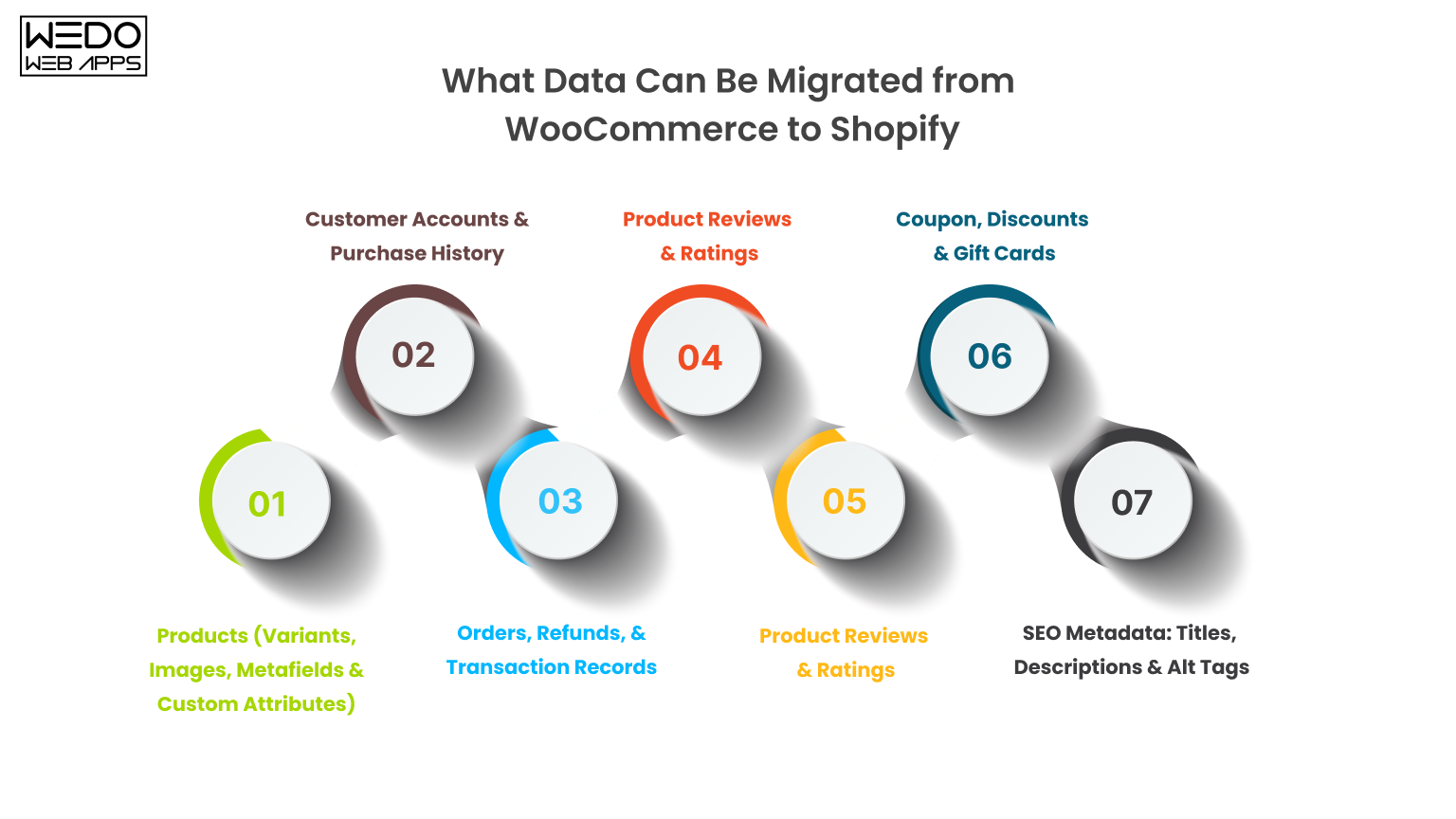
Before you start any export work, you need a clear picture of exactly what is moving, what needs special handling, and what cannot be transferred automatically.
Products (Variants, Images, Metafields & Custom Attributes)
Your full product catalog migrates cleanly, including:
- Product titles, descriptions, and prices.
- SKUs and stock levels.
- Product images and galleries.
- Variant combinations (size, color, material)
- Product tags and categories.
Custom metafields and product attributes need extra mapping steps, especially if you used WooCommerce customer fields or ACF integrations.
Customer Accounts & Purchase History
Most customer data transfers without issues:
- Names, email addresses
- Billing and shipping addresses
- Account creation dates and tags
One important exception: Customer password cannot be migrated. Shopify uses a different password hashing system. Your customer will need to reset their password after the WooCommerce to Shopify migration, and you should communicate this clearly before launch.
Orders, Refunds, & Transaction Records
Historical orders can be migrated to keep your reporting and customer service records intact. These include:
- Order line items and totals
- Shipping details
- Refund records
Note: Shopify imports these as archived orders. They will not be editable, and payment statuses will reflect the migrated state rather than live payment gateway data.
Product Reviews & Ratings
Product reviews can be migrated using tools like LitExtension, or through the import functions of Shopify review apps like Judge.me or Yotpo. This step is easy to overlook, but your reviews represent years of social proof and are worth the effort to preserve.
Blog Posts, Pages & Media Files
The following content can all be migrated:
- Blog posts
- Static pages (About, Contact, FAQ)
- Associated images and media
All media files should be re-uploaded to Shopify's CDN during migration. Do not rely on images still hosted on your WordPress server; that server will eventually be shut down.
Coupon, Discounts & Gift Cards
- WooCommerce coupon code can be recreated as a Shopify discount code.
- Gift card balances cannot be automatically transferred; the affected customer needs to be reissued new Shopify gift cards.
SEO Metadata: Titles, Descriptions & Alt Tags
SEO metadata, including meta titles, meta descriptions, and image alt tags, should be exported from WooCommerce (via Yoast or RankMath) and mapped into Shopify's SEO fields during import. This is one of the most commonly skipped steps in any WooCommerce to Shopify migration, and one of the most damaging if skipped.
What Cannot Be Directly Migrated (And How to Handle Each Gap)
Some things simply do not transfer:
- WooCommerce plugin configurations must be rebuilt in Shopify.
- Custom database tables created by the plugin are left behind.
- Subscription billing cycles must be manually recreated in your Shopify subscriptions app.
- Complex custom post types may need a Shopify developer to be restructured for Shopify's data model.
Identify these gaps during your pre-migration audit, not after go-live.
Pre-Migration Audit: What to Do Before You Touch Anything
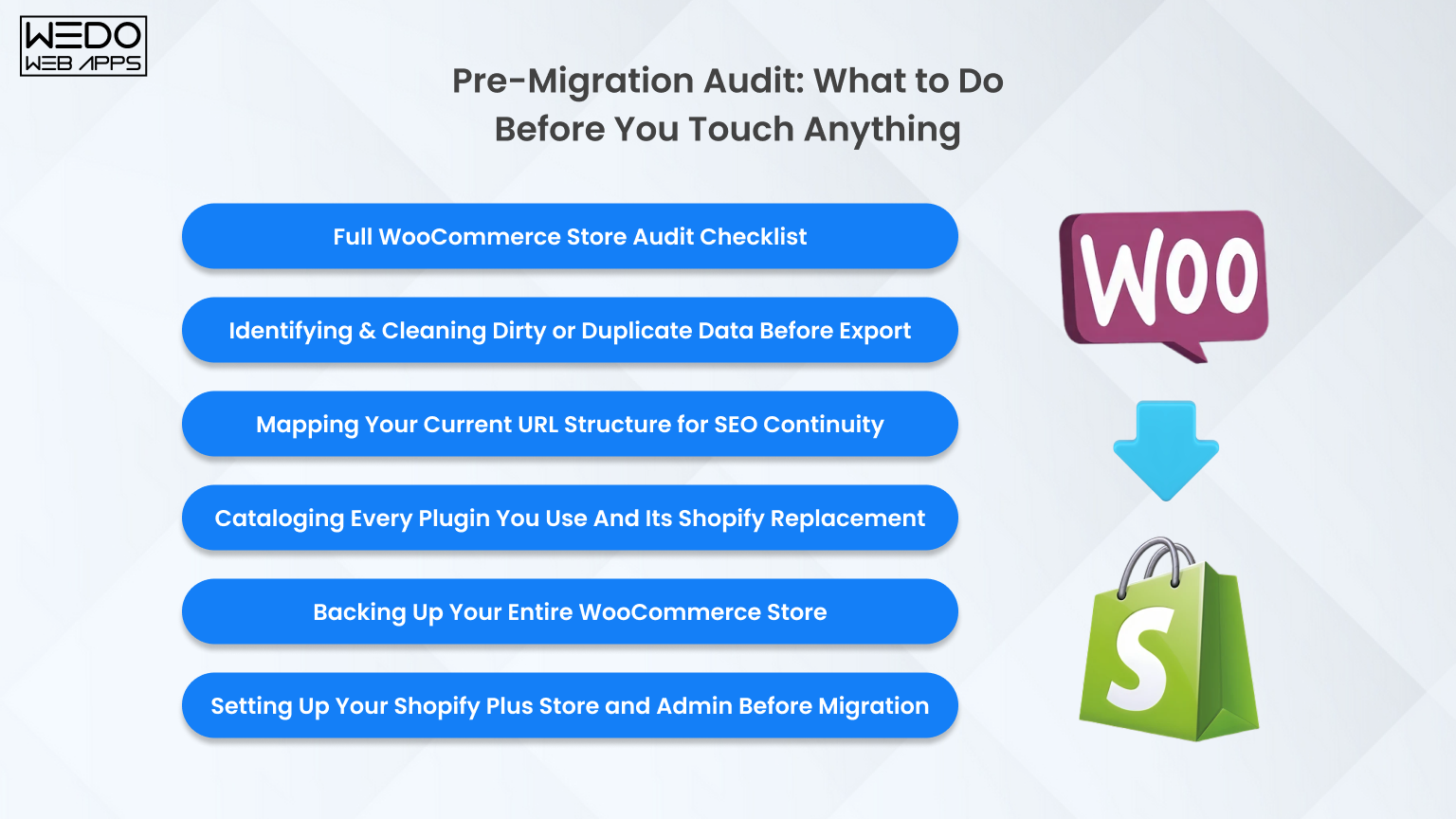
The quality of your migration depends almost entirely on the quality of your preparation. Rushing this phase is the most common reason migrations go wrong.
Full WooCommerce Store Audit Checklist
Start by documenting everything in your current store:
- Total number of products, customers, and orders.
- Number of blog posts and static pages.
- All active plugins and what each one does.
- Active payment gateways and shipping zones.
- Any custom code in your theme or functions.php file.
This document becomes your migration reference guide from start to finish.
Identifying & Cleaning Dirty or Duplicate Data Before Export
Before you export anything, clean your data:
- Remove duplicate SKUs and products.
- Fix missing or broken product images.
- Complete any incomplete product descriptions.
- Merge or remove duplicate customer email addresses.
- Fill in any missing customer address fields.
Migrating dirty data does not fix it; it just moves the problem to a new platform.
Mapping Your Current URL Structure for SEO Continuity
Export every indexed URL from Google Search Console. Then crawl your WooCommerce site using a tool like Screaming Frog to capture every internal URL. Create a simple spreadsheet with two columns:
- Old URL (WooCommerce)
- NEW URL (Shopify)
This WooCommerce to Shopify SEO service allows for a URL redirect map, which is the most important document you will create during the entire migration process.
Cataloging Every Plugin You Use And Its Shopify Replacement
For every active WooCommerce plugin, document:
- What the plugin does
- How business-critical it is
- Whether Shopify has a native equivalent
- Which Shopify app replaces it
- Estimated time to set up the replacement
This exercise almost always reveals 3-5 plugins that have no direct Shopify development equivalent and will need custom solutions or workflow changes.

Backing Up Your Entire WooCommerce Store (Step-by-Step)
Before any migration work starts, take a full backup of your WooCommerce database and file system. Use a plugin like UpdraftPlus or take a server-level snapshot. Store the backup in at least two locations, one local, one cloud. This is your safest net. You will probably never need it, but you will be very glad it exists if something goes wrong.
Setting Up Your Shopify Plus Store and Admin Before Migration
Do not wait until after migration to set up your Shopify store. Before data migration begins:
- Create your Shopify Plus account
- Configure store settings like currency, timezone, tax, and shipping zones.
- Install and configure your chosen theme.
- Set up your key apps so imported data flows into them correctly from day one.
WooCommerce to Shopify Migration: Complete Step-by-Step Process (Including Shopify Plus)
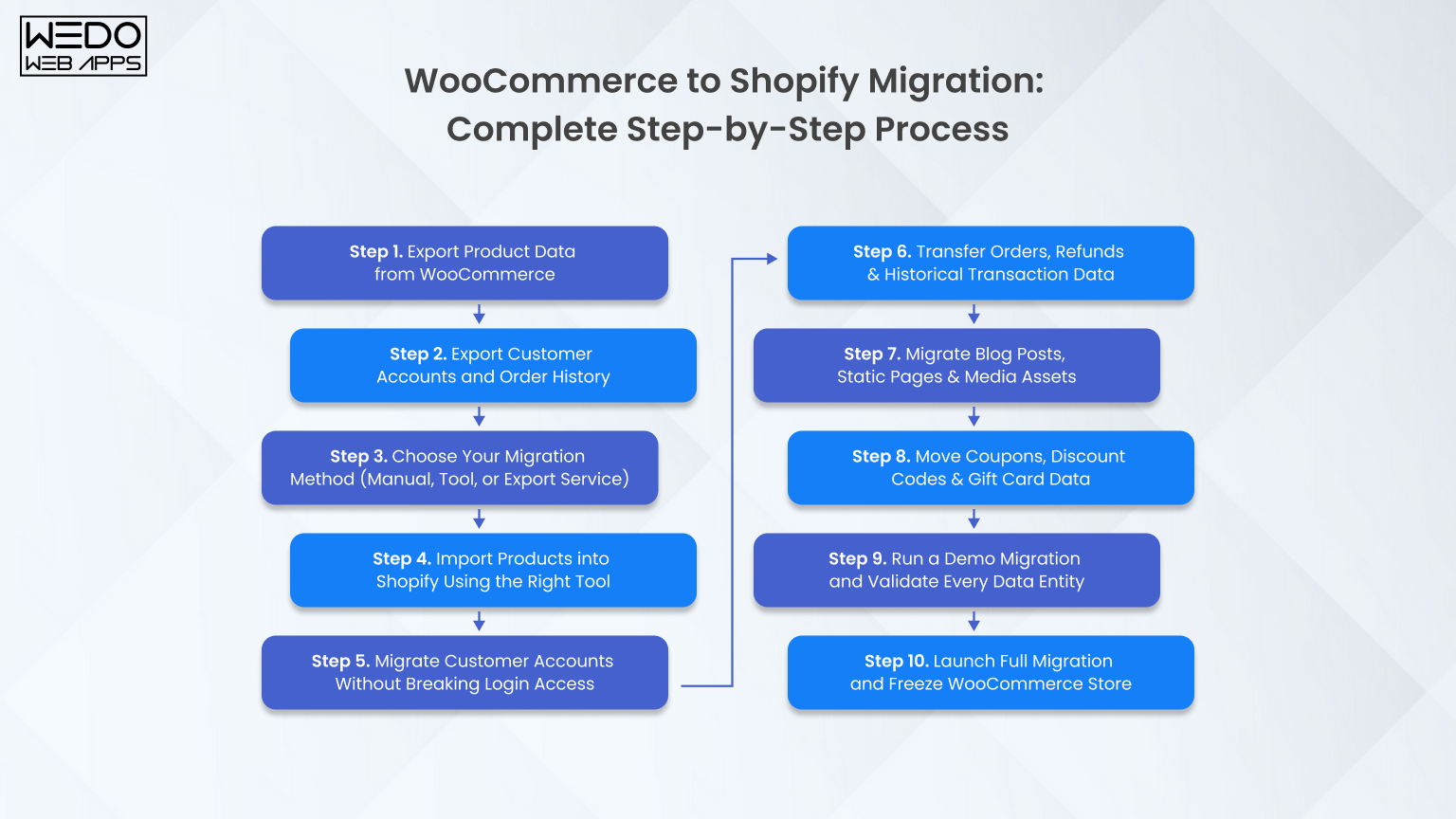
Step 1. Export Product Data from WooCommerce
Use WooCommerce's built-in product export tool (Product -> Export) to generate a CSV of your full catalog. For stores with complex variable products, metafields, or custom attributes, use a dedicated export plugin like Matrixify's WooCommerce exporter. It generates a Shopify-compatible format directly and saves significant manual mapping work.
Step 2. Export Customer Accounts and Order History
- Go to WooCommerce -> Customer and export your customer list as CSV.
- Go to WooCommerce -> Orders -> Export to download your order history.
- For a large store with 10,000+ orders, export in batches by date range to keep file sizes manageable.
Step 3. Choose Your Migration Method (Manual, Tool, or Export Service)
There are three ways to move from WooCommerce to Shopify:
- Manual migration via CSV - best for stores with fewer than 500 simple products.
- Automated migration tools (Cart2Cart, LitExtension, Matrixify) - best for mid-size stores with moderate complexity.
- Professional Shopify Plus migration partner - best for large stores, complex customizations, B2B requirements, or zero tolerance for downtime.
Step 4. Import Products into Shopify Using the Right Tool
For simple catalogs, Shopify's built-in product importer works well. For complex imports, Matrixify (formerly Excelify) gives you the most control. It supports bulk imports of products, collections, metafields, and redirects all from a single spreadsheet. Map your products, collections, metafields, and redirects all from a single spreadsheet. Map your WooCommerce column headers to Shopify's required fields before you start the import.
Step 5. Migrate Customer Accounts Without Breaking Login Access
Import your customer CSV into Shopify via the customer importer or through Matrixify. After import, send a bulk password reset email to all migrated customers. Be transparent about what is happening. A simple email explaining the platform upgrade and asking customers to set a new password maintains trust and avoids confusion.
Step 6. Transfer Orders, Refunds & Historical Transaction Data
Use Matrixify or a dedicated migration tool to import historical orders. When mapping order statuses:
- WooCommerce "Processing" -> Shopify "Paid."
- WooCommerce "Completed" -> Shopify "Fulfilled."
- WooCommerce "Refunded" -> Shopify "Refunded."
After import, manually verify totals on a sample of 50-100 orders to confirm data accuracy.
Step 7. Migrate Blog Posts, Static Pages & Media Assets
- Export blog posts as XML from WordPress.
- Recreate them in Shopify's blog editor (or use a migration tool).
- Re-upload all media files to Shopify's file manager.
- Update all internal links within blog content to point to their new Shopify URLs.
Do not link images back to your WordPress media library that server will be decommissioned eventually.
Step 8. Move Coupons, Discount Codes & Gift Card Data
Recreate WooCommerce coupon codes as Shopify discount codes. If any WooCommerce coupons had complex conditional logic, such as user role restriction or product combination rules. Test each one in Shopify carefully to confirm it behaves the same way. For gift card balances, generate new Shopify gift cards and notify affected customers directly.
Step 9. Run a Demo Migration and Validate Every Data Entity
Before running the full migration, test with a small subset of data, typically 10 products, 10 customers, and 10 orders. Check:
- All fields map correctly
- Product images display properly
- Variant data is complete and accurate
- Customer addresses are correct
- Order totals match
- SEO metadata fields are populated
Fix any mapping errors before scaling to your full dataset.
Step 10. Launch Full Migration and Freeze WooCommerce Store
Once your demo is validated, run the full migration. Immediately after it completes, put your WooCommerce store into maintenance mode. This prevents new orders from being placed on the old platform while you complete DNS cutover and final testing. Your WooCommerce store should never accept new orders after this point.

WooCommerce to Shopify Product Data Migration Tool: Which One Should You Use?
Choosing the right WooCommerce to Shopify product data migration tool makes a significant difference in how much manual work is involved and how clean your data lands in Shopify.
Manual CSV Migration: When it Works and When It Breaks
Manual CSV migration works for:
- Store with fewer than 500 simple products.
- No customer metafields or complex attributes.
- A team comfortable working with spreadsheets.
It breaks when you have variable products with complex attribute combinations, custom fields, or more than a few thousand rows. CSV mapping errors at scale can take days to fix.
Automated Migration Tools: How They Work and What They Support
Automated tools connect to your WooCommerce database via API or FTP, extract your data, transform it into Shopify's format, and push it to your new store, all without manual CSV work.
Most support:
- Products and variants
- Customer and order history
- Blog posts and pages
- SEO metadata and URL redirects
The quality of the data mapping varies between tools, so always run a demo migration first.
Cart2Cart, Matrixify & LitExtension: Side-by-Side Comparison
| Feature | Cart2Cart | Matrixify | LitExtension |
|---|---|---|---|
| Product | Yes | Yes | Yes |
| Orders | Yes | Yes | Yes |
| Customers | Yes | Yes | Yes |
| Metafields | No | Yes | Limited |
| SEO URLs | Yes | Yes | Yes |
| Redirects | Yes | Yes | Yes |
| Reviews | Yes | No | Yes |
| Pricing | Pre migration | Subscription | Pre migration |
| Best For | Speed | Complex data | Large catalogs |
Custom Migration for Complex or Large WooCommerce Stores
For stores that are developed with dedicated WooCommerce developers, allow for setups, complex B2B pricing rules, multi-warehouse inventory, ERP integrations, or custom post types. Off-the-shelf tools will not handle the full migration cleanly. A custom migration built by a certified Shopify Plus migration partner is the right investment at this level of complexity.
How to Validate Your Product Data After Import
After import, run a spot-check across five areas:
- Count check: Total products in Shopify matched WooCommerce
- Image check: No broken or missing product images
- Variant check: All size, color, and material combinations are present
- Pricing check: Compare 20 products manually against WooCommerce
- Inventory check: Spot-check 20 SKUs against WooCommerce stock levels
WooCommerce to Shopify SEO URL Redirect Mapping: Protecting Every Ranking You've Built
SEO is the highest-risk element of any platform migration. A missed redirect is a lost ranking. At scale, missing redirects means lost revenue.
Why Platform Migrations Kill SEO (And How to Prevent It)
When you move from WooCommerce to Shopify, your URLs change. Google has indexed your old URLs. If those old URLs return a 404 error instead of redirecting to their new equivalents, Google drops them from its index. Depending on how many pages are affected, you can lose 20-60% of your organic traffic within weeks of going live. This is entirely preventable, but only if you treat SEO as a core migration deliverable from day one.
Building Your WooCommerce to Shopify SEO URL Redirect Map
Follow these steps to build your WooCommerce to Shopify SEO URL redirect map:
- Export all indexed URLs from Google Search Console.
- Crawl your WooCommerce site with Screaming Frog to capture every internal URL.
- Create a spreadsheet with two columns: Old URL and New URL.
- Map every product page, collection page, blog post, and static page.
- Pay special attention to category pages; WooCommerce uses/product-category/name/ while Shopify uses /collections/name.
How to Set Up 301 Redirects in Shopify (Bulk & Individual)
- Individual redirects: Shopify Admin -> Navigation -> URL Redirects -> Add URL Redirect.
- Bulk redirect: Upload a CSV file with two columns, "Redirect from" and "Redirect to," via Shopify's bulk redirect importer or through Matrixify.
Upload your full redirect file before DNS cutover so every redirect is live the moment your new store goes public.
Migrating SEO Metadata: Page Titles, Descriptions & Structured Data
Export your Yoast or RankMath SEO data from WooCommerce as CSV. Then map:
- Meta title -> Shopify's SEO title field
- Meta descriptions -> Shopify's meta description field
- Image alt tags -> Shopify's image alt text field
For large catalogs, use Matrixify to bulk-import SEO metadata. Do not rely on Shopify to auto-generate meta descriptions from product copy, as they are rarely optimized for search.
Handling Shopify's URL Structure Limitations (/products/,/collections/)
Shopify uses a fixed URL structure that you cannot change:
- Products -> /product/handle
- Collections -> /collections/handle
- Blog posts -> /blogs/blog-name/post-handle
If your WooCommerce store used flat URLs (e.g.,/product/name), every single one of those URLs needs a redirect entry. Factor this into your redirect map from the very beginning.
Canonical Tags, Herflang & Sitemaps Submission Post-Migration
- Shopify automatically generated canonical tags for all pages, which prevents duplicate content issues.
- If you run multiple language or regional stores, configure herflang tags through your translation app (Weglot or Langify)
- After migration, submit your Shopify sitemap (yourdomain.com/sitemap.xml) to Google Search Console and Bing Webmaster Tools immediately.
Post-Migration SEO Audit: What to Check in the First 30 Days
Within 30-days of going live:
- Run a full crawl with Screaming Frog to identify any remaining 404 errors.
- Check Google Search Console for coverage errors and redirect chains longer than 2 hops.
- Monitor your top 20 keywords rankings weekly using your rank tracking tool.
- Compare organic traffic week-over-week versus the same period last year.
- Any significant traffic drop required immediate investigation.

Shopify Plus App Replacements for WooCommerce Plugins
One of the most underestimated challenges of moving from WooCommerce to Shopify Plus is replacing your plugin stack. Your WooCommerce store's functionality is built on plugins. Shopify is built on apps. They are not a one-to-one match.
How to Audit Your WooCommerce Plugin Stack Before Migrating
For every active plugin, document:
- What it does in plain terms
- Whether it touches your database or modifies checkout
- How critical it is to daily operations
- Whether a Shopify equivalent exists
- How long will it take to set up the replacement
Sort your plugins into three categories: directly replaceable, partially replaceable, and no direct equivalent. The third category drives your custom development budget.
Essential WooCommerce Plugin to Shopify App Replacement Map
SEO Plugins - Yoast to Shopify SEO Apps
Yoast's core features, like meta titles, meta descriptions, XML sitemaps, and breadcrumbs, are largely handled natively by Shopify. For advanced SEO needs like structured data and bulk metadata editing, Plug In SEO or SEO Manager are the leading replacements.
Page Builders - Elementor to Shopify Theme Sections or PageFly
Elementor's drag-and-drop editing is replaced by Shopify's native Online Store Editor with sections and blocks. For pages that need more layout flexibility, PageFly or Shogun offer Elementor-style control within Shopify.
Subscription Plugins - To Recharge or Shopify Subscriptions
WooCommerce Subscription is replaced by either Recharge (the market leader for complex subscription models) or Shopify's native subscription feature (for straightforward recurring billing). Active billing cycles must be manually recreated in your new subscriptions platform plan this carefully.
Membership Plugins - To Bold Memberships or Locksmith
WooCommerce Memberships are replaced by Bold Memberships or Locksmith on Shopify. Both support gated content, member-only pricing, and tiered access, but the configuration logic is different enough that a full rebuild is required.
Wholesale & B2B Plugins - To Shopify Plus Native B2B
WooCommerce wholesale plugins are replaced by Shopify Plus's native B2B functionality, which supports company accounts, custom price lists, net payment terms, and purchase order workflows, all without a third-party app. This is one of the biggest advantages of migrating to Shopify Plus specifically.
Advanced Reporting Plugins - To Shopify Analytics or Glew
WooCommerce reporting plugins are replaced by Shopify's built-in analytics for standard eCommerce metrics, combined with Glew.io or Daasity for advanced cohort analysis, LTV reporting, and cross-channel attribution.
WooCommerce Plugins With No Direct Shopify Equivalent: What to Do
Some WooCommerce plugins solve problems that Shopify handles differently or does not address natively. These typically include:
- Complex product configurators
- Highly custom pricing engines
- Deep ERP integrations with legacy systems
These gaps require either a custom Shopify app or a bespoke Shopify Function. Budget for this work before migration begins, not after you discover the gap.

Payment Gateway Setup After Moving from WooCommerce to Shopify Plus
Shopify Payments - Setup, Eligibility & What It Replaces
Shopify Payments is Shopify's built-in payment processor, powered by Stripe. The main advantages:
- Eliminates transaction fees that apply when using third-party gateways.
- Integrates directly with your Shopify dashboard.
- Supports accelerated checkouts: Shop Pay, Apple Pay, and Google Pay.
- Available in 23+ countries.
If you are eligible, activating Shopify Payments should be your first step in the payment setup process.
Migrating from WooCommerce Payment Gateways (Stripe, PayPal, & Others)
- Stripe users: Your existing Stripe account connects directly to Shopify Payments.
- PayPal users: PayPal integrates as a separate payment method within Shopify's checkout settings.
- All gateways: Statement descriptions, capture settings, and 3D Secure preferences must be reconfigured in Shopify.
Setting Up Multiple Currencies and Markets on Shopify Plus
Shopify Plus Markets lets you sell in multiple currencies and regions from a single store, with:
- Localized pricing per market
- Checkout currency conversion
- Regional domain or subfolder support
Configure your marketplace before launch day so international customers experience correct local pricing from the very first visit. This is one of the most powerful advantages Shopify Plus has over a typical WooCommerce multi-currency setup.
B2B Payment Terms and Net Payment Options on Shopify Plus
Shopify Plus native B2B supports net payment terms - Net 15, Net 30, Net 60 on a per-company basis. This means:
- No third-party B2B payment plugin needed.
- Payment terms integrate directly into the checkout for approved wholesale accounts.
- Company profiles and payment terms are managed from your Shopify Plus admin.
Set up company profiles and assign payment terms before migrating your wholesale customer base.
Testing Every Checkout Flow Before Going Live
Before DNS cutover, test every payment method you offer:
- Credit card
- PayPal
- Shop Pay
- Any BNPL options like Klarna or Afterpay
- Gift card redemptions
- Subscription billing triggers
- Failed payment recovery flows
Do not go live until every single checkout path is confirmed to work.
Post-Migration QA Testing: Validate Everything Before You Go Live
QA testing is not optional. It is your last line of defence before real customers experience your new store. Build a checklist, assign ownership to specific team members, and do not skip anything.
Product Page QA - Images, Variants, Pricing & Inventory
For a sample of 50-100 products (including your top sellers), verify:
- All images display correctly and at the right quality.
- All product variants are present and selectable.
- Prices are accurate, including sale prices.
- Inventory levels match WooCommerce.
- Product descriptions are complete and properly formatted.
- SEO metadata fields are populated.
Customer Account QA - Login, Password Reset & Order History Access
- Create a test customer account and verify the login flow works.
- Trigger a password reset and confirm the email arrives correctly.
- Log in to a migrated customer account and verify that historical orders are visible.
- Check that billing and shipping addresses have migrated correctly.
Order & Checkout Flow Testing (Including Edge Cases)
Place test orders covering:
- Standard checkout with a credit card
- Check out with a discount code applied
- Check out with a gift card applied
- Check out using Shop Pay
- Guest checkout (no account required)
Confirm that order confirmation emails are sent correctly and that each order appears in the Shopify admin with the right status.
Redirect Testing - Every Old URL Must Land Somewhere
Using a bulk URL checker or Screaming Frog, test every URL in your redirect map. Every old URL should:
- Return a 301 status (permanent redirect).
- Resolve to the correct new Shopify URL.
Any URL returning a 404 needs an immediate redirect added. Complete this step before DNS cutover.
Speed & Performance Testing on Shopify Plus
Run your homepage, a collection page, and your top product page through Google PageSpeed Insights and GTmetrix before launch. Target:
- LCP (Largest Contentful Paint): under 2.5 seconds
- FID (First Input Delay): under 100ms
- CLS (Cumulative Layout Shift): under 0.1
If scores are poor, investigate large image files, render-blocking scripts, and app JavaScript conflicts before going live.
Mobile Responsiveness & Cross-Browser QA
Test every key page on:
- iOS Safari
- Android Chrome
- Desktop Chrome, Firefox, and Safari
Pay close attention to product image galleries, the cart drawer, and the checkout flow on mobile; these are where most issues appear. Use BrowserStack for systematic cross-browser testing if your team does not have all devices available.
Analytics, Tracking Pixels & Tag Manager Verification
Before launch, confirm:
- Google Analytics 4 is firing correctly on all pages, including the order confirmation page (purchase event).
- Meta Pixel is sending PageView, AddToCart, InitiateCheckout, and Purchase events.
- Google Tag Manager container is deployed, and all tags are firing correctly.
Use GA4 DebugView and Meta Pixel Helper to verify these in real time.

Launch Day Checklist - Going Live on Shopify Plus
Pre-Launch Final Verification (48 Hours Before)
Forty-eight hours before DNS cutover, confirm all of the following:
- All redirects are uploaded and tested.
- All payment gateways are live and verified with test transactions.
- All transactional emails are configured and are being sent correctly.
- All analytics and tracking pixels are verified.
- Inventory levels are synced and accurate.
- Customer launch communication is ready to send.
DNS Cutover - How to Switch Domains Without Downtime
In Shopify, add your custom domain under Online Store -> Domains. Follow Shopify's instructions to update your A record and CNAME with your domain registrar. DNS propagation typically takes 24-48 hours, but is often faster. During propagation:
- Keep WooCommerce in maintenance mode to prevent split orders.
- Monitor both platforms to see when Shopify fully takes over.
Notifying Customers About the New Store Experience
Send a launch email to your full customer list covering:
- The platform upgrade and what has changed.
- The need to reset their password (with a direct reset link).
- Any improvements they will notice faster checkout, better mobile experience, and new features.
This email reduces support tickets and builds goodwill around the transition.
Monitoring the First 24 Hours Post-Launch
Assign someone to actively monitor the following for the full first 24 hours:
- Live orders coming through the Shopify admin.
- Check the checkout conversion rate in Shopify Analytics.
- Customer support channels for login or checkout issues.
- Google Analytics real-time for unexpected traffic drops or bounce rate spikes.
Have your development team on standby for the first 48 hours after launch.
Submitting Your New Sitemap to Google & Bing
Immediately after DNS cutover:
- Log in to Google Search Console and submit your sitemap at yourdomain.com/sitemap.xml
- Do the same in Bing Webmaster Tools.
- Use the URL Inspection tool to request indexing of your homepage, top collection pages, and top product pages.
Google will typically begin recrawling your site within hours of sitemap submission.
The 90-Day Post-Launch Performance Roadmap
Going live is not the finish line. Follow this post-launch roadmap:
- Weeks 1-2: Monitor and fix any 404 errors flagged in Search Console.
- Weeks 3-4: Review conversion rate by device and traffic source; identify checkout drop-off points.
- Month 2: Run a full SEO audit comparing keyword rankings against your pre-migration baseline.
- Month 3: Review app performance and costs against your old WooCommerce plugin costs; optimize your tech stack.
WooCommerce to Shopify Plus Migration Checklist
Use this as your master reference throughout the entire WooCommerce to Shopify Plus migration. Each section maps to the corresponding guide section above.
Pre-Migration Checklist
- Complete WooCommerce store audit (products, customers, orders, plugins, pages).
- Back up WooCommerce database and file system (two locations).
- Export all indexed URLs from Google Search Console.
- Build a full WooCommerce to Shopify SEO URL redirect map.
- Clean all product and customer data before export.
- Catalog all active plugins and identify Shopify Plus app replacements.
- Set up a Shopify Plus account and configure basic store settings.
- Install and configure the Shopify theme before migration begins.
Data Migration Checklist
- Export products via CSV or WooCommerce to Shopify product data migration tool.
- Export customers and full order history.
- Run demo migration and validate all data entities.
- Import products: verify images, variants, and pricing.
- Import customers: verify addresses and account data.
- Import orders: verify totals, statuses, and line items.
- Migrate blog posts and static pages.
- Re-upload all media to Shopify CDN.
- Recreate coupons and discount codes.
- Handle gift card balances for affected customers.
SEO Migration Checklist
- Upload the complete 301 redirect map to Shopify.
- Test all redirects, no 404 responses remaining.
- Import all SEO metadata (titles, descriptions, alt tags).
- Verify canonical tags on all pages.
- Configure hreflang tags if applicable.
- Submit the new sitemap to Google Search Console and Bing.
App & Plugin Replacement Checklist
- SEO app installed and configured.
- Page builder or theme editor configured.
- Subscription app installed; billing cycle recreated.
- Membership app installed and configured (if applicable).
- Shopify Plus native B2B configured for wholesale accounts.
- Reporting tools connected and verified.
- All custom plugin gaps identified and resolved.
QA Testing Checklist
- Product pages verified (images, variants, pricing, inventory).
- Customer login and password reset flow tested.
- Order history visible in migrated customer accounts.
- All checkout flows tested (card, PayPal, Shop Pay, discount code, gift card).
- All redirects are returning 301 with correct destinations.
- PageSpeed scores, reviews, and Core Web Vitals met.
- Mobile and cross-browser testing complete.
- Analytics and tracking pixels verified.
Launch Day Checklist
- All pre-launch verifications are complete (48 hours before).
- WooCommerce store set to maintenance mode.
- DNS cutover initiated.
- Customer launch email sent (with password reset link).
- Live monitoring is assigned for the first 24 hours.
- Sitemap submitted to Google and Bing.
- Development team on standby for the first 48 hours.
Download the complete WooCommerce to Shopify Plus Migration Checklist as a free printable PDF.
Why Work With a Certified Shopify Plus Migration Partner?
A certified Shopify Plus migration partner brings hands-on experience from dozens or hundreds of previous migrations. They know exactly which data mapping edge cases cause problems, have pre-built tooling for complex data, app configuration, QA testing, and launch.
Zero Downtime Migration: How it is Actually Achieved
Zero downtime migration means your WooCommerce store keeps operating normally right up until the DNS cutover moment. Here is how it works:
- All migration work happens on your new Shopify store in parallel.
- Immediately before cutover, a final delta sync captures any new orders or customers created after the initial migration.
- DNS is switched, WooCommerce is frozen.
- The window where neither store is fully live is measured in minutes, not hours.
Zero Data Loss Guarantee: What That Means in Practice
A zero data loss guarantee means every product, customer record, and order in your WooCommerce store is present and accurate in Shopify after migration. Achieving this requires:
- A validation process that compares total record counts across every entity type.
- Field-level spot-checks to confirm data accuracy, not just presence.
- Any discrepancy is investigated and resolved before the migration is signed off.
Shopify Plus Partner vs. Freelancer: How to Choose the Right One
A Shopify Plus Partner agency has been vetted by Shopify for technical ability, client outcomes, and business stability. Key differences versus a freelancer:
- Proven migration methodology and formal QA process.
- Backup team resource if something goes wrong mid-project.
- Experience migrating stores across industries and store sizes.
- Greater accountability and contractual protection.
For a migration involving significant revenue, years of customer data, and hard-won SEO rankings, the risk profile of who you hire matters as much as the price.
Conclusion: Plan It Right, Migrate Once, & Scale Faster
The decision to WooCommerce to Shopify Plus is more than a platform change. It is about building a store that performs better and scales without constant technical effort.
If you plan to migrate WooCommerce to Shopify, focus on preparation, clean data, and proper testing. A well-managed WooCommerce to Shopify migration protects your SEO, customer data, and revenue from day one.
Brands that succeed when moving from WooCommerce to Shopify follow a structured process and avoid rushing the launch with the help of the right eCommerce developers. When you move from WooCommerce to Shopify with the right approach, you get faster performance, a smoother checkout, and a system ready for growth.
Keep the process simple, validate every step, and launch with confidence.