Introduction
How much does it actually cost to turn your app ideas into a real product?
If you are also exploring Flutter, this is likely the first question on your mind. And you are right to ask it early.
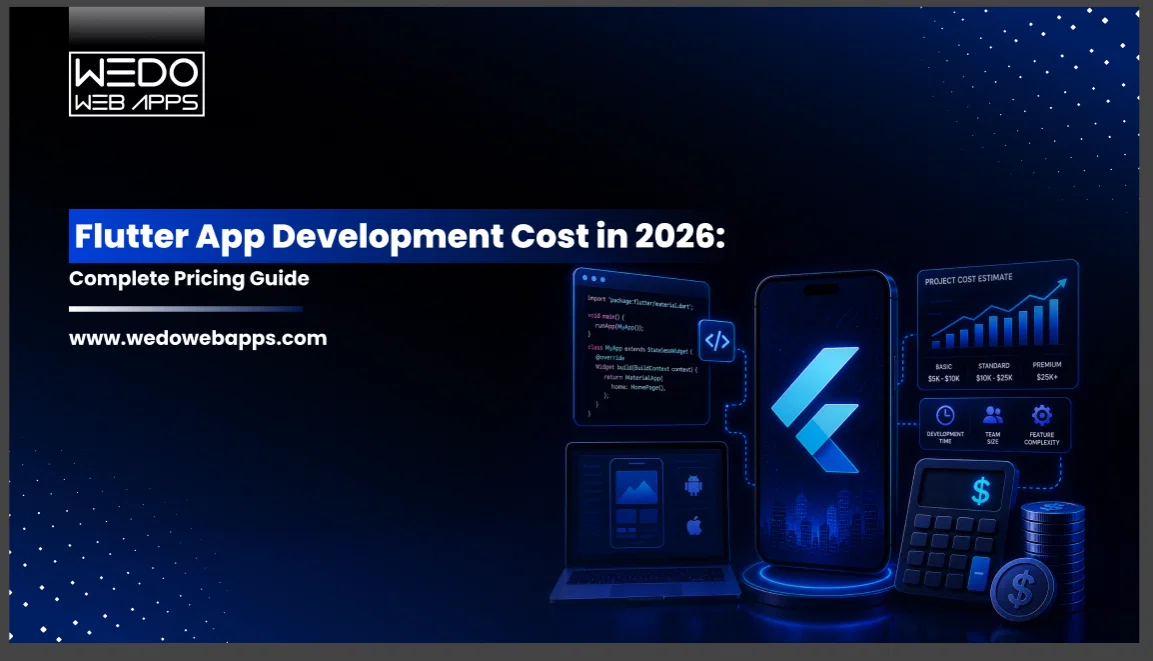
The Flutter app development cost in 2026 usually falls between $15,000 and $150,000+, depending on what you build. A simple MVP with core features sits on the lower end. A feature-rich platform with integrations, real-time systems, or AI capabilities can move well beyond that range.
This gap is exactly why many businesses struggle to plan their budget. The cost of Flutter app development is not fixed. It changes based on your app’s complexity, design expectations, and the development team you choose.
For startups, getting this clarity early can save both time and money. It helps you decide what to build first and how to scale later. Without it, the cost to develop a Flutter app can quickly go beyond expectations.
In this guide, you will get a structured breakdown of the Flutter app price. From app types and real-world scenarios to factors that influence the final Flutter app cost, everything is explained in a way that helps you plan your investment with confidence.
Because when you understand the number from the start, every product decision becomes more controlled and practical.
Let’s start with the most important question. What does it typically cost to build a Flutter app today?

Why Flutter is a Cost-Effective Choice for App Development
Flutter helps businesses control the Flutter app development cost without limiting product quality.
A single codebase allows developers to build apps for Android and iOS together. This reduces development hours and keeps the cost of Flutter app development lower compared to building separate native apps.
The development process is faster. Teams can launch features quickly, which reduces overall effort and helps to manage the Flutter app price more efficiently.
Flutter also works well for MVPs and long-term products. You can start with a basic version and scale it as your business grows. This flexibility helps to keep the cost to develop a Flutter app within a practical range while planning future expansion.
In simple terms, Flutter allows you to build more with less investment, making it a practical choice for startups and growing businesses managing their Flutter app cost.
What is the Average Cost to Develop a Flutter App in 2026?
The average Flutter app development cost in 2026 ranges from $15,000 to $150,000+. This wide range exists because every app is built with different goals, features, and technical requirements.
For businesses evaluating investment, this number alone is not enough. You need to understand what falls under each cost range and what you actually get at each level of spending.
Quick Cost Range Overview
Here’s the structured view of the cost to develop a Flutter app based on complexity, features, and business use:
| Type | Cost | Timeline | Best For | Includes |
|---|---|---|---|---|
| Basic Flutter App | $15,000 to $40,000 | 6 to 10 weeks | Early-stage startups testing an idea |
|
| Mid-Level Flutter App | $40,000 to $80,000 | 10 to 16 weeks | Growing startups or small businesses |
|
| Complex Flutter App | $80,000 to $150,000+ | 4 to 8 months | Funded startups or enterprises |
|
Why Flutter App Development Cost Varies
The cost of Flutter app development changes because no two applications are built the same way. Even small differences in requirements can significantly affect the final budget.
Here are the key factors that influence the Flutter app price:
- Feature Scope: The more features you add, the more development time is required. For example, adding real-time chat or AI recommendations can increase the overall Flutter app cost.
- Design Complexity: A simple design using standard components costs less. A custom-designed interface with animations and branding increases the cost to develop a Flutter app.
- Backend Development: Apps that require a custom backend system, databases, or cloud infrastructure will have higher development costs compared to apps using ready-made backend services.
- Third-party Integrations: Payment gateways, analytics tools, maps, and messaging services add both development effort and ongoing costs.
- Development Team Location: Hiring a developer in regions like India is more cost-effective compared to US or Europe. This directly impacts the total Flutter app development cost.
To put it simply, the cost works like a sliding scale. A focused MVP keeps your investment low and helps you launch faster. As you add features, integrations, and scalability, the Flutter app price increases accordingly.
Understanding these cost layers early helps you plan your budget more accurately and avoid unexpected expenses during development.
Flutter App Development Cost Breakdown by App Type
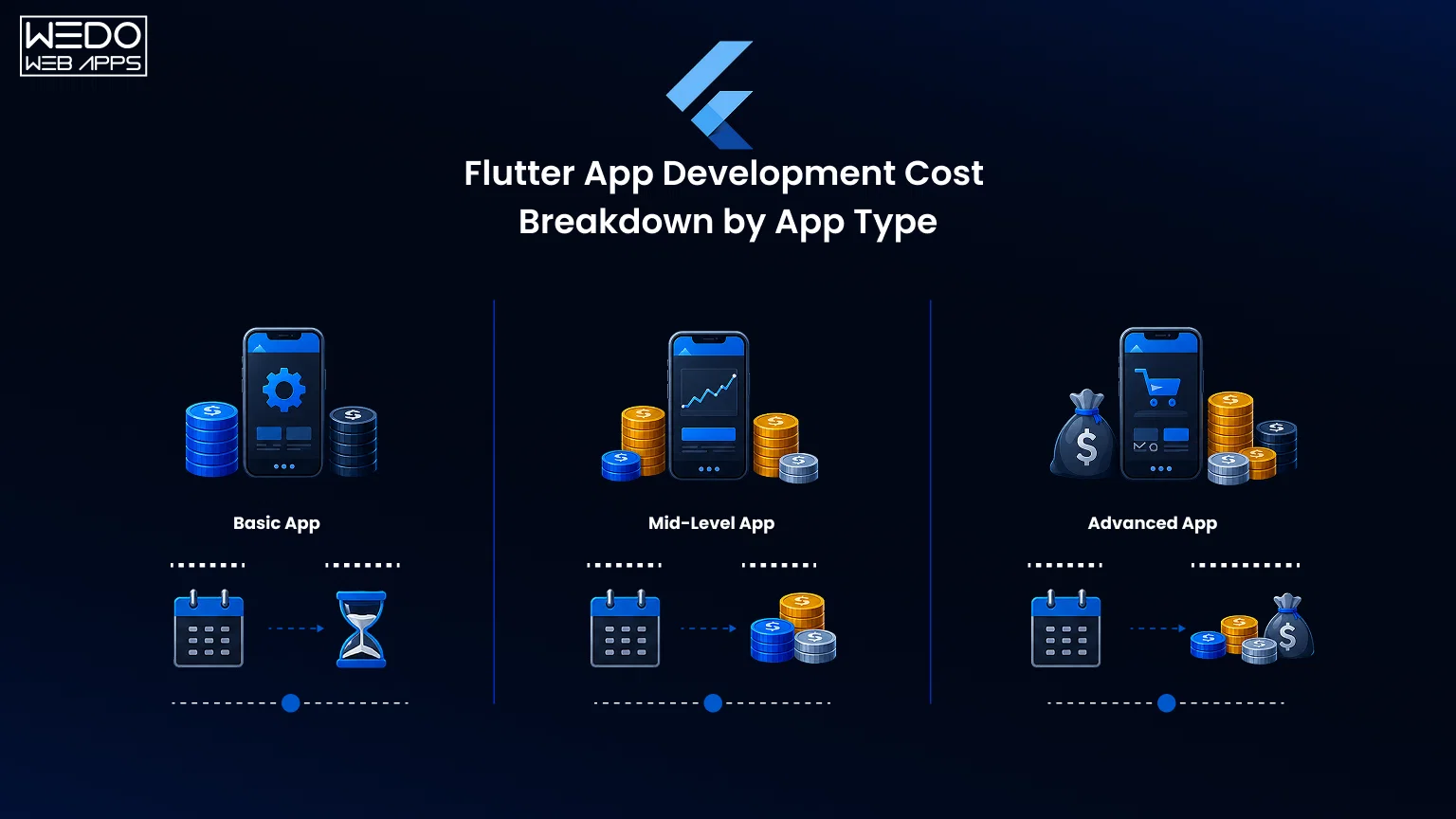
The Flutter app development cost becomes much clearer when you look at it based on the type of app you are planning to build. Each category represents a different level of complexity, user experience, and business goals.
Instead of thinking in numbers alone, it helps to understand what each level actually delivers.
Basic Flutter Apps (MVP or Internal Tools)
This is where most startups begin.
A basic app focuses on solving one specific problem with limited features. It is built to test an idea quickly and gather real user feedback without a large upfront investment.
You can expect:
- Simple user flows with minimal screens.
- Basic UI without heavy customization.
- Limited backend or database logic.
- Essential integrations only.
From a cost perspective, this keeps the cost to develop a Flutter app at the lower end because the development scope is controlled.
A good example would be an MVP for a new service where the goal is validation, not perfection.
Mid-Level Apps (eCommerce, Booking, Dashboards)
Once your idea is validated, the next step is building a product that users can actively engage with.
Mid-level apps introduce more structure and functionality. These apps are designed for real users and often include multiple user roles, integrations, and smoother user experiences.
You can expect:
- User authentication and profile management.
- API integrations for dynamic data.
- Payment system and transactions.
- Admin dashboards for control and analytics.
- Better UI with improved usability.
At this stage, the cost of Flutter app development increases because the app is no longer just functional. It needs to be reliable, interactive, and scalable for growing users.
Complex Apps (Fintech, AI, Real-Time Systems)
This is where apps move from products to full platforms.
Complex apps require advanced architecture, strong security, and the ability to handle large volumes of users and data. These are built for businesses that need performance, scalability, and long-term growth.
You can expect:
- Real-time features such as chat or live tracking.
- AI or data-driven functionalities.
- Advanced security and compliance layers.
- Multi-user roles with permission control.
- Scalable backend infrastructure.
Here, the Flutter app cost reflects more than just development time. It includes system design, performance optimization, and long-term reliability.
Each category is not separate. It is a progression. Most successful products do not start as complex platforms. They begin as simple versions, produce their value, and then expand.
This approach helps you manage the Flutter app price in stages instead of making a large investment upfront.

Flutter App Cost Table (Detailed Pricing Overview)
By now, you have a clear idea of how the Flutter app development cost changes based on app type.
This section brings everything together in a structured format so you can quickly estimate your budget from different angles.
Cost by App Type
This view helps you understand what you can expect based on the kind of products you are building.
| App Type | Key Focus | Estimated Cost | Timeline |
|---|---|---|---|
| Basic (MVP) | Core functionality, idea validation | $15,000 to $40,000 | 6 to 8 weeks |
| Mid-Level | User engagement, integrations | $40,000 to $80,000 | 10 to 16 weeks |
| Complex | Scalability, performance, security | $80,000 to $150,000+ | 4 to 8 months |
Cost by Development Stage
The cost to develop a Flutter app also depends on how far you take your product in the first phase.
| Development Stage | What It Includes | Cost Impact |
|---|---|---|
| MVP | Core features only | Lower initial investment |
| Growth Stage | Feature expansion, integrations | Moderate increase |
| Full Product | Scalability, performance optimization | Higher total cost |
Cost by Region
Where your development team is located plays a major role in the overall Flutter app price.
| Region | Average Hourly Rate | Cost Impact |
|---|---|---|
| India | $20 to $50 | Most cost-effective |
| Eastern Europe | $40 to $90 | Balanced pricing |
| US/UK | $80 to $150+ | Higher investment |
What This Means for Your Budget
The cost of Flutter app development is not just about one number. It is a combination of what you build, how much you build, and who builds it.
A simple way to think about it:
- App type defines your base cost.
- Development stage defines how much you invest now vs later.
- Team location defines your overall spending efficiency.
When you combine these three factors, you get a much more realistic view of your total Flutter app cost.
This structured approach helps you plan better and avoid unexpected budget increases as your project moves forward.
Get a precise Flutter app quote. We break down cost by feature, not by guesswork.
Flutter MVP Development Cost and Timeline for Startups
For most startups, building everything at once is not the right approach. That is why many begin with an MVP.
An MVP, or Minimum Viable Product, focuses on launching a usable version of your app with only the most important features. This helps you validate your idea without committing to a high Flutter app development cost from the start.
What a Flutter MVP Includes
A Flutter MVP is built with a clear goal. Launch fast and learn from real users.
Instead of adding every feature, the focus stays on care functionality.
A typical MVP includes:
- Essential user flows to complete one main action.
- Basic UI that is clean and functional.
- Simple backend or database setup.
- Limited integrations, such as login or basic APIs.
For example, if you are building a booking app, the MVP would include search, selection, and booking. Advanced filters or recommendations can come later.
This approach helps to keep the cost to develop a Flutter app within a manageable range.
Cost to Develop a Flutter MVP
The cost of Flutter app development for an MVP usually falls between $15,000 and $40,000.
This range depends on:
- Number of core features.
- Level of UI customization.
- Backend requirements.
- Development team location.
A well-planned MVP avoids unnecessary complexity. This ensures your Flutter app price stays aligned with your initial business goals.
Typical Development Timeline
Speed is one of the biggest advantages of building an MVP with Flutter.
A standard timeline looks like this:
- Planning and requirement finalization: 1 to 2 weeks
- UI design and prototyping: 1 to 2 weeks
- Development and integration: 3 to 5 weeks
- Testing and launch: 1 to 2 weeks
This means most MVPs can be launched within 6 to 10 weeks.
Why Start with an MVP
Starting small gives you more control over your Flutter app cost.
- You reduce initial investment.
- You validate your idea with real users.
- You avoid building features that users may not need.
Think of it like testing a product in a small market before expanding. Once you have feedback and traction, you scale your app step by step.
This phased approach makes the Flutter app development cost more predictable and aligned with business growth.
Real-World Flutter App Cost Examples (Startup Scenarios)
Understanding the Flutter app development cost becomes easier when you see how it applies to real products. Instead of looking at ranges alone, these examples show what businesses typically build within a fixed budget.
Each scenario reflects a common startup use case and how the cost to develop a Flutter app is distributed.
Booking App Development Cost (Approx. $35,000)
A booking app is often the starting point of service-based startups.
Key features included:
- User registration and login.
- Search and filtering options.
- Booking and scheduling system.
- Payment gateway integration.
- Basic admin panel.
Timeline: 8 to 12 weeks
Why this cost range: The Flutter app price stays moderate because the app focuses on structured workflows rather than complex logic. Most features are predictable and can be built using standard integrations.
AI Productivity App Cost (Approx. $55,000)
This type of app focuses on improving user efficiency using data or AI integration of features.
Key features included:
- User dashboard and task management.
- AI-based suggestions or automation.
- API integration for AI services.
- Data storage and analytics.
- Clean and responsive UI.
Timeline: 10 to 16 weeks
Why this cost range: The cost of Flutter app development increases due to AI integration and backend processing. These features require additional development effort and testing.
Fintech App Development Cost (Approx. $90,000)
Fintech apps are among the most complex and sensitive applications.
Key features included:
- Secure user authentication.
- Payment and transaction systems.
- KYC verification process.
- Real-time data handling.
- Admin controls and reporting.
Timeline: 4 to 6 months
Why this cost range: The Flutter app cost is higher due to strict security requirements, compliance standards, and reliable backend systems. Every feature must be built with precision and tested thoroughly.
What You Can Learn from These Examples
These scenarios show a clear pattern:
- Simpler workflows keep the Flutter app development cost lower.
- Advanced features like AI and real-time systems increase the budget.
- Security and compliance significantly impact the Flutter app price.
Most importantly, you do not need to build everything at once. Start with a focused version, validate it, and expand based on user needs.
This approach helps you manage the cost to develop a Flutter app without taking unnecessary risks early on.

Flutter App Development Cost for Fintech Apps and Compliance
Fintech apps are different from standard applications. They deal with sensitive user data, financial transactions, and strict guidelines. Because of this, the Flutter app development cost for fintech products is usually higher than for other app types.
This is not just about adding features. It is about building trust, security, and compliance into every layer of the app.
Security Requirements and Their Cost Impact
Security is the foundation of any fintech app. Even a small gap can lead to serious risks.
Common security implementations include:
- End-to-end data encryption.
- Multi-factor authentication.
- Secure APIs and token-based access.
- Fraud detection mechanisms.
- Data protection and storage standards.
Each of these adds development time and testing effort. This directly increases the cost of Flutter app development, but it is necessary for user trust and platform stability.
Compliance Costs (KYC, PCI DSS, GDPR)
Fintech apps must follow industry regulations based on the region they operate in.
Key compliance requirements include:
- KYC (Know Your Customer) for identity verification.
- PCI DSS for secure payment processing.
- GDPR or similar data protection regulations.
Meeting these standards involves documentation, integrations, and regular audits. These factors increase the Flutter app price, but they are essential to operate legally and securely.
Banking and Payment Integrations
Most fintech apps rely on external systems to function.
Common integrations include:
- Payment gateways and wallets.
- Banking APIs.
- Transaction processing systems.
- Real-time financial data services.
These integrations require careful implementation and testing. They also introduce ongoing costs, which add to the total Flutter app cost over time.
Why Fintech Apps Cost More
The cost to develop a Flutter app in fintech is higher because you are not just building features. You are building a system that handles money, data, and compliance at scale.
- Security layers increase development effort.
- Compliance requirements add complexity.
- Integrations require precision and reliability.
Think of it like building a secure vault instead of a regular room. The structure is similar, but the level of protection and planning is far more advanced.
For businesses entering fintech, it is important to plan the Flutter app development cost with these factors in mind. Cutting corners in this space can lead to bigger issues later, both technically and legally.
Key Factors That Affect Flutter App Development Cost
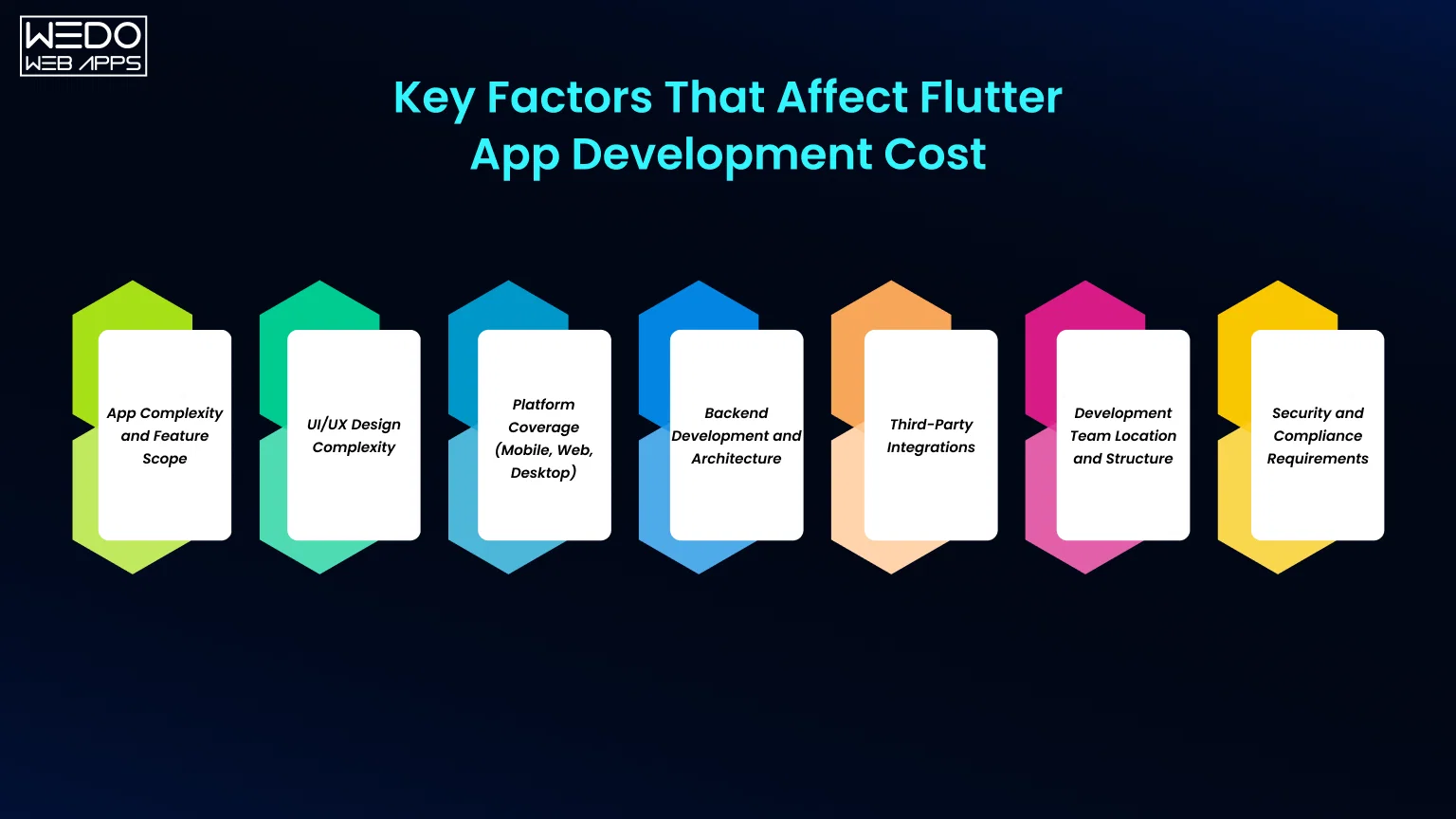
By now, you have seen different cost ranges and examples. To plan accurately, you need to understand what actually drives the Flutter app development cost.
Each of these factors below directly impacts how much time, effort, and budget your app will require.
App Complexity and Feature Scope
This is the most important factor when estimating the cost to develop a Flutter app.
Apps with basic functionality cost less. As you add advanced features, the development effort increases.
Features that impact cost include:
- User authentication and profile management.
- Real-time features like chat or live tracking.
- Payment processing and transaction systems.
The broader your feature set, the higher the overall Flutter app cost.
UI/UX Design Complexity
Design plays a key role in both user experience and development effort.
A simple interface built with standard templates keeps the Flutter app price lower. Custom designs with unique layouts, branding, and animations require more design and development time.
Design levels:
- Template-based UI for faster development.
- Custom UI for brand consistency.
- Advanced UI with animations and transitions.
Platform Coverage (Mobile, Web, Desktop)
Flutter allows you to build apps for multiple platforms, but each platform adds additional work.
If your app is limited to mobile, the cost of Flutter app development stays lower. Expanding to the web or desktop increases development, testing, and optimization efforts.
Backend Development and Architecture
The backend manages data, user interactions, and system logic.
Using ready-made solutions such as Backend-as-a-Service can reduce the Flutter app development cost. Building a custom backend with a scalable architecture increases both cost and development time.
Backend options:
- BaaS for faster and cost-effective setup.
- Customer backend for flexibility and scalability.
Third-Party Integrations
Most apps rely on external services to function efficiently.
Integrating APIs such as payment gateways, analytics tools, or communication services adds to the Flutter app price. Some services also introduce ongoing costs.
Development Team Location and Structure
Your choice of development team significantly affects the cost to develop a Flutter app.
Common options include:
- Freelancers for smaller projects.
- Agencies for structured development.
- In-house teams for long-term projects.
Hiring in regions like India is more cost-effective compared to the US or Europe, which directly impacts the total Flutter app cost.
Security and Compliance Requirements
Apps that handle sensitive data require strong security measures.
Adding features such as encryption, secure authentication, and compliance standards increases the cost of Flutter app development, especially for industries like Fintech or healthcare.
Each of these factors works together to define your final budget. Understanding them early helps you prioritize features and manage your Flutter app development costs more effectively.

Flutter vs React Native Cost Comparison for Startups
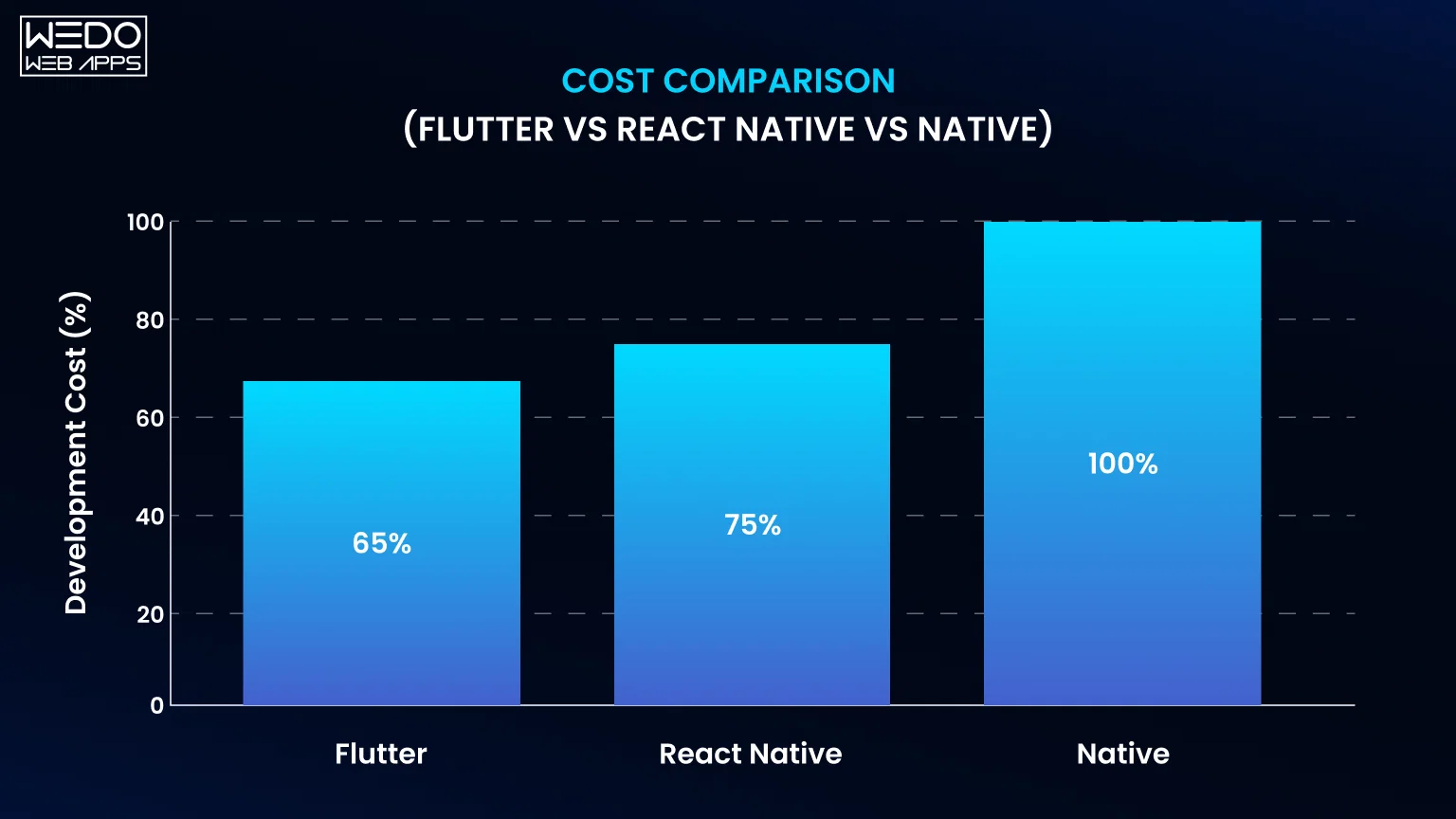
Choosing the right framework is not just a technical decision. It directly affects your budget, timeline, and long-term maintenance. For many startups, the comparison often comes down to Flutter and React Native.
Both are strong cross-platform frameworks, but their impact on the Flutter app development cost and overall investment can differ based on your project needs.
Development Cost and Time Comparison
Flutter uses a single codebase with a rich set of built-in components. This reduces dependency on external libraries and speeds up development.
React Native relies more on third-party libraries, which can sometimes increase development efforts.
What this means for cost:
- Flutter can reduce the development hours, helping control the cost to develop a Flutter app.
- React Native may require additional setup and integration effort in some cases.
For startups working with limited budgets, faster development often translates into better cost efficiency.
Maintenance and Long-Term Cost
Building the app is only one part of the investment. Ongoing maintenance also impacts the total Flutter app cost.
Flutter offers more consistency across platforms, which makes updates and bug fixes easier to manage. React Native apps may require more platform-specific adjustments over time.
Cost impact:
- Flutter can reduce long-term maintenance effort.
- React Native may involve additional work for platform-specific issues.
Which is More Cost-Effective for Startups
From a startup’s perspective, the goal is to build fast, launch early, and scale efficiently.
Flutter is often preferred when:
- You want faster development with a single team.
- You need a consistent UI across platforms.
- You want to manage the Flutter app price within a controlled budget.
React Native can still be a good option if your team already has strong JavaScript expertise or specific project requirements.
Both frameworks can deliver quality apps, but Flutter often provides better control over the cost of Flutter app development due to faster development cycles and simpler maintenance.
For startups focused on speed and cost efficiency, Flutter is usually the more practical choice.
Flutter Developer Rates by Region (India vs US vs Europe)
The location of your development team has a direct impact on Flutter app development cost. The same app can cost significantly different amounts depending on where your developers are based.
Understanding regional pricing helps you make a smarter decision based on your budget and project needs.
Cost of Hiring Flutter Developers in India
India is one of the most preferred destinations for outsourcing app development or hiring Flutter developers.
Average hourly rate: $20 to $50
Why businesses choose India:
- Cost-effective development without compromising quality.
- Large pool of experienced Flutter developers.
- Flexible hiring models for startups and growing businesses.
For startups, this option helps reduce the cost to develop a Flutter app while still maintaining development speed and quality.
Cost in the US and Western Markets
Developers in the US, UK, and Western Europe typically charge higher rates.
Average hourly rates: $80 to $150+
What you get at this cost:
- Strong communication and local collaboration.
- Access to experienced teams for complex projects.
- Higher operational and development costs.
This significantly increases the overall Flutter app price, especially for long-term projects.
Offshore vs Onshore Development: What Works Better
Choosing between offshore and onshore development depends on your priorities.
Offshore (India, Eastern Europe):
- Lower development cost
- Suitable for startups with budget constraints
- Requires proper communication and project management
Onshore (US, UK):
- Easier collaboration
- Faster communication
- Higher Flutter app cost
What This Means for Your Budget
The development location can change your total cost of Flutter app development by two to three times.
- Offshore teams help you stay within budget.
- Onshore teams offer closer collaboration but at a higher price.
For many startups, a hybrid approach works well. You can manage strategy locally while outsourcing development to control the Flutter app development cost effectively.
What You Get at Different Flutter App Budget Levels
Understanding the Flutter app development cost becomes easier when you look at it from a budget perspective. Instead of guessing what your investment will deliver, this section shows what you can realistically expect at different price points.
$30,000 Budget
At this level, the focus is on building a functional MVP that can be launched quickly.
What you typically get:
- Core features built around a single use case.
- Basic but clean UI.
- Simple backend setup.
- Limited third-party setup.
Best suited for:
Startups testing an idea or entering the market for the first time.
At this stage, the cost to develop a Flutter app is controlled by keeping the scope limited and focused.
$50,000 to $80,000 Budget
This range allows you to build more complete and user-ready products.
What you typically get:
- Multiple features and user flows.
- User authentication and profile management.
- Payment gateway integration.
- API-based architecture.
- Improved UI and user experience.
Best suited for:
Startups and businesses are launching a product for real users.
Here, the cost of Flutter app development reflects a balance between functionality and scalability.
$100,000+ Budget
At this level, you are building a scalable platform rather than just an app.
What you typically get:
- Advanced features such as real-time systems or AI.
- Strong backend architecture for scalability.
- High-level security and performance optimization.
- Multi-user roles and complex workflows.
Best suited for:
Funded startups, enterprises, or businesses with long-term growth plans.
The Flutter app cost in this range includes not just development but also system design and future scalability.
How to Approach Your Budget
Your budget should align with your business stage, not just your idea.
- Start small if you are validating a concept.
- Invest more once you see traction.
- Scale features based on user demand.
This approach helps you manage the Flutter app price step by step instead of committing to a large upfront investment.
In simple terms, your budget defines how much of your product you build today and how much you plan for tomorrow.
Flutter App Maintenance and Ongoing Costs
Building your app is only the first step. To keep it running smoothly, you need to plan for ongoing expenses as well.
The Flutter app development cost does not end at launch. Maintenance, updates, and scaling all contribute to the long-term Flutter app cost.
Monthly and Annual Maintenance Cost
Most businesses spend 15% to 25% of the initial development cost annually on maintenance.
What this includes:
- Bug fixes and performance improvements.
- OS and device compatibility updates.
- Minor feature updates.
- Security patches.
For example, if your initial cost to develop a Flutter app was $40,000, your yearly maintenance could range between $6,000 and $10,000.
Hidden Costs You Should Plan For
Some costs are not obvious during development but become important after launch.
Common hidden costs include:
- Cloud hosting and server changes.
- Third-party API subscriptions.
- Analytics and monitoring tools.
- App store fees and renewals.
These ongoing expenses directly affect the total Flutter app price over time.
Scaling Cost as Your App Grows
As your user base increases, your app needs to handle more traffic and data.
Scaling may require:
- Upgrading server infrastructure.
- Improving backend performance.
- Adding new features based on user demand.
- Enhancing security measures.
This is where the long-term cost of Flutter app development evolves. The more your app grows, the more resources it requires.
What This Means for Your Budget
Many businesses focus only on development and overlook maintenance.
A better approach is to plan both upfront and ongoing costs together.
- Development cost builds your app.
- Maintenance costs keep it running.
- Scaling cost supports growth.
When you account for all three, your Flutter app development cost becomes more predictable and easier to manage over time.
How to Estimate Your Flutter App Development Cost
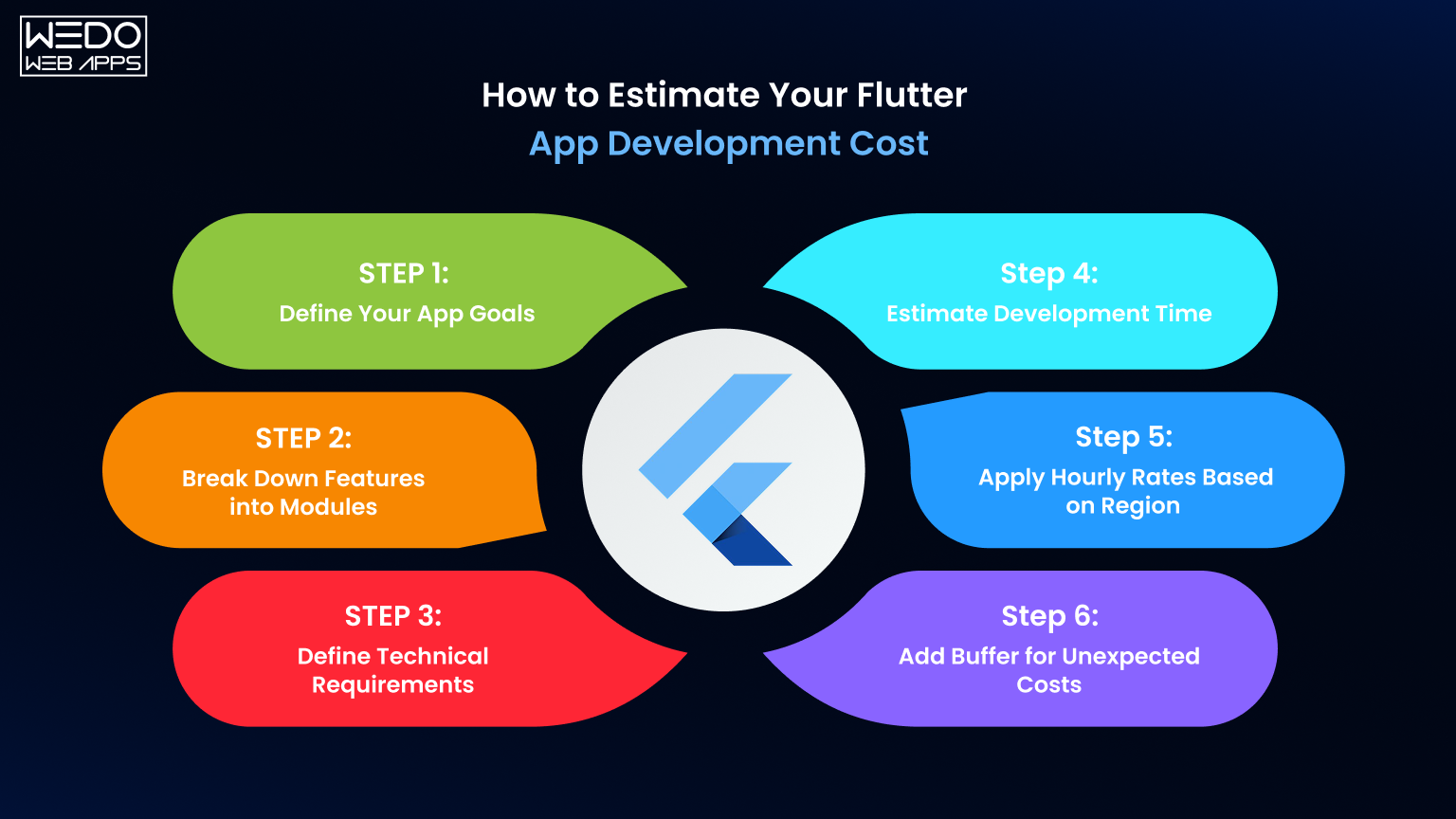
Estimating the Flutter app development cost is not about guessing a number. It is about breaking your idea into measurable components so you can assign realistic time, effort, and budget to each part.
A structured estimation helps to avoid under-budgeting or over-investing early.
Step 1. Define Your App Goals
Start with a clear product vision.
Ask:
- What problem does your app solve?
- Who will use it?
- What is the primary action users should complete?
These steps help you avoid unnecessary features that increase the cost to develop a Flutter app without adding real value.
Example:
If your goal is booking services, your core focus should be search, selection, and booking. Not advanced analytics or AI at the start.
Step 2. Break Down Features into Modules
Instead of listing features broadly, divide them into smaller modules.
Common modules include:
- User authentication
- Dashboard or home screen
- Search and filters
- Payments or transactions
- Notifications
Each module requires design, development, and testing. The more modules you include, the higher the Flutter app cost.
Tip:
Classify features into:
- Must-have (for launch)
- Nice-to-have (post-launch)
Step 3. Define Technical Requirements
Your technical choices directly impact the cost of Flutter app development.
Consider:
- Will you use a simple backend or a custom-built system?
- Do you need real-time features?
- Are third-party integrations required?
Example:
Using ready-made backend services can reduce initial cost, while custom architecture increases flexibility but also increases budget.
Step 4. Estimate Development Time
Once the feature and technical scope are clear, estimate how long each module will take.
A typical breakdown looks like:
- UI/UX design: 15% to 20% of total effort
- Frontend development: 30% to 40%
- Backend development: 20% to 30%
- Testing and deployment: 15% to 20%
More time means a higher Flutter app price, especially if you are working with hourly rates.
Step 5. Apply Hourly Rates Based on Region
Multiply estimated hours by developer rates.
Example calculation:
- Total estimated effort: 800 hours
- Developer rate: $30 per hour
Estimated cost: $24,000
This step gives you a practical estimate of the cost to develop a Flutter app based on real effort.
Step 6. Add Buffer for Unexpected Costs
Every project has uncertainties.
Add a buffer of 10% to 20% to your estimate to cover.
- Scope changes
- Additional features
- Technical challenges
This ensures your total Flutter app development cost stays realistic.
Example: Estimating a Mid-Level App
Let’s say you are building a mid-level booking app:
- Features: Authentication, search, booking, payments
- Backend: API-based system
- Timeline: 12 weeks
- Team: Offshore agency
Estimated cost range: $35,000 to $60,000
This aligns with typical market pricing and gives you a realistic expectation of the Fluuter app cost.
What This Means for Your Planning
A proper estimation is like creating a blueprint before construction.
- It helps you control your budget.
- It prevents feature overload.
- It aligns development with business goals.
When you break your app into clear components, the Flutter app development cost becomes predictable instead of uncertain.
Cost-Saving Strategies for Flutter App Development
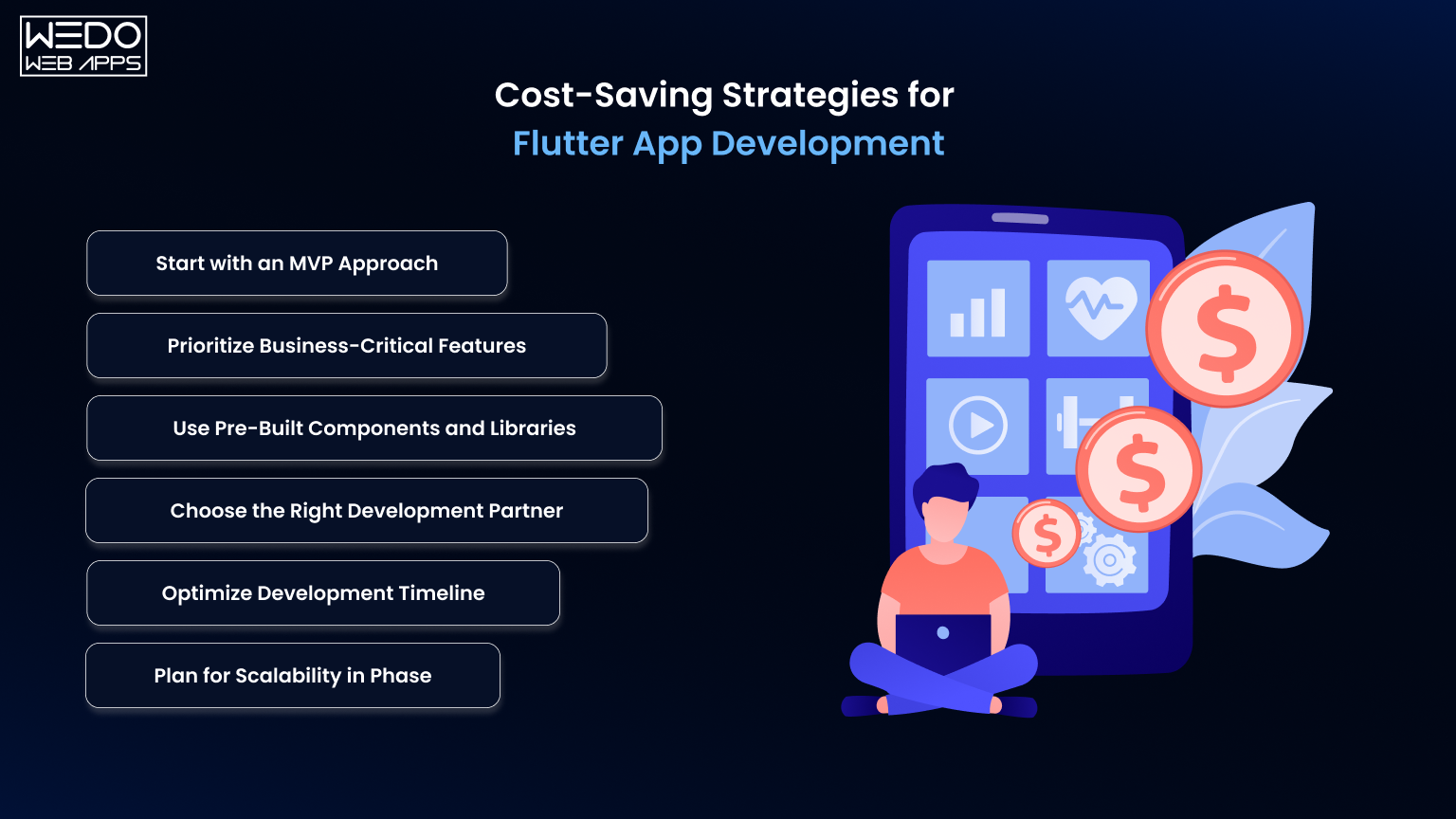
Managing the Flutter app development cost is not just about reducing expenses. It is about making smarter decisions, so you get the best outcome within your budget.
Here are practical strategies that help you control the cost to develop a Flutter app without affecting quality.
Start with an MVP Approach
Building everything at once increases risk and cost.
Start with a Minimum Viable Product that includes only the most important features. This allows you to launch faster and validate your idea before investing more.
Impact on cost:
- Reduces initial Flutter app cost.
- Avoids spending on unused features.
- Helps you invest based on real user feedback.
Prioritize Business-Critical Features
Not every feature needs to be built in the first version.
Focus on what directly supports your business goal and user needs.
How to approach this:
- Identify must-have features for launch.
- Delay advanced or optional features.
- Build in phases instead of all at once.
This keeps the cost of Flutter app development aligned with actual business value.
Use Pre-Built Components and Libraries
Flutter has a strong ecosystem with reusable components.
Instead of building everything from scratch, use existing libraries for common functionalities.
Examples:
- UI components
- Authentication systems
- Payment integrations
This reduces development time and lowers the overall Flutter app price.
Choose the Right Development Partner
Your development team can either control or increase your costs.
An experienced team will:
- Estimate accurately.
- Avoid unnecessary rework.
- Deliver within timelines.
Choosing the right partner helps you manage the Flutter app development cost more effectively.
Optimize Development Timeline
Time directly costs, especially with hourly billing.
Ways to optimize:
- Finalize requirements before development.
- Avoid frequent scope changes.
- Maintain clear communication with the team.
A well-managed timeline helps to keep the Flutter app cost predictable.
Plan for Scalability in Phase
Instead of building a fully scalable system from day one, scale gradually.
- Start with a basic infrastructure.
- Upgrade as user demand grows.
This approach spreads the cost to develop a Flutter app over time and reduces initial investment.
What This Means for Your Budget
Cost-saving is not about cutting corners. It is about building smart.
- Focus on what matters first.
- Use available resources efficiently.
- Scale based on real demand.
When you follow these strategies, the Flutter app development cost becomes easier to manage while still delivering a strong product.
Is Flutter Worth the Cost for App Development in 2026?
After understanding the full Flutter app development cost, the real question is whether the investment delivers value.
The answer depends on what you expect from your app. For most startups and businesses, Flutter offers a strong balance between cost, speed, and scalability.
Where Flutter Justifies Its Cost
Flutter is not just about saving money upfront. It helps to reduce overall development effort across the product lifecycle.
Key advantages include:
- Single codebase for multiple platforms reduces duplication.
- Faster development cycles lower the total project cost.
- Consistent UI across devices improves user experience.
- Easier updates help to control the long-term Flutter app cost.
This means the cost of Flutter app development often delivers more output compared to traditional approaches.
ROI from a Business Perspective
The real value of any app lies in how quickly it reaches users and starts generating returns.
Flutter helps in:
- Faster time to market.
- Lower initial investment for MVPs.
- Easier scaling as your business grows.
For startups, this makes the cost to develop a Flutter app more manageable and aligned with growth stages.
When Flutter Makes the Most Sense
Flutter is a strong choice if:
- You want to launch on Android and iOS together.
- You are working with a limited or controlled budget.
- You plan to start with an MVP and scale gradually.
- You need a consistent user experience across platforms.
In these scenarios, the Flutter app price remains justified because you reduce both development time and future costs.
When to Reconsider
While Flutter fits most use cases, there are situations where alternatives may be considered:
- Highly platform-specific applications.
- Projects requiring deep native integrations.
- Extremely complex hardware-level interactions.
Even in these cases, the decision should be based on technical needs, not just the Flutter app development cost.
Final Thoughts
The Flutter app development cost is not just an expense. It is an investment in how fast you can launch, how well your app performs, and how easily you can scale.
If your goal is to build a high-quality app without doubling development effort, Flutter offers a practical path. It helps you move from idea to launch faster while keeping the cost to develop a Flutter app under control.
For most startups and growing businesses, this balance makes the cost of Flutter app development a smart and sustainable choice.
Now the real question is how much it costs. It is how efficiently you want to build.
If you are planning your app, this is the right time to get clarity on your budget and scope.
- Get a tailored Flutter app cost estimate based on your ideas and features.
- Know your exact investment, timeline, and roadmap before you start.
The sooner you define your budget, the faster you can move from planning to launch.