



Introduction
Desktop applications have been around since the 1990s and have assisted many with their different needs. It is installed in computers as desktop software or applications for different needs or purposes, and differs greatly from mobile or web applications.
Today, mobile and web application development are more popular due to the growth in smartphone usage. Desktop applications still offer unique benefits, making them the preferred option for several needs and requirements.
This desktop application development guide covers everything you need to know about the desktop software development overview. From what apps are, why businesses rely on them, the step-by-step development process, popular frameworks, and future trends, we discuss important aspects.
Let’s dive in.
Desktop Application: An Overview
Desktop applications are computer programs run on desktops and laptops. And what is desktop application development? It is the process of designing, building, and deploying software that runs natively on a user’s operating system rather than in a browser.
These apps are designed for operating systems such as Windows, macOS, and Linux. The global remote desktop software industry crossed $2.83 billion in the year 2024.
They provide a standalone graphical user interface (GUI) and access device features like files, printers, and cameras directly. Examples include MS Word, Excel, Visual Studio, Adobe Photoshop, Xcode, etc. Desktop apps offer various advantages over other digital solutions.
Why Is There a Growing Demand For Desktop Apps?
There has been a rising demand for desktop applications from businesses recently due to their various advantages over web and mobile application development. Desktop apps allow businesses to automate routine tasks and workflows, enhancing productivity and efficiency.
They also offer powerful controls and features tailored to an organization’s specific needs. Desktop software can be customized to integrate seamlessly with other legacy systems and lines of business applications that enterprises use.
Businesses leverage the latest technologies through desktop apps to remain competitive in their industries. Furthermore, desktop apps provide businesses with added cybersecurity and data protection layers.
They offer faster performance when handling large and complex data sets than web and cloud-based solutions. With desktop apps, businesses also regain control over their critical IT infrastructure and save costs on additional hardware requirements for mobile and web apps.
Key reasons for the growing importance of desktop apps in businesses include:
- Reduced risks of data breaches and vulnerabilities.
- Customizable interactive features as per business needs.
- Tighter integration with other internal enterprise systems.
- Lower operating costs through automation of routine workflows.
- Improved productivity with faster computation of large datasets.
- Enhanced data security and protection from external threats.

Desktop Application V/S Mobile Application V/s Web Application: What’s the Difference?
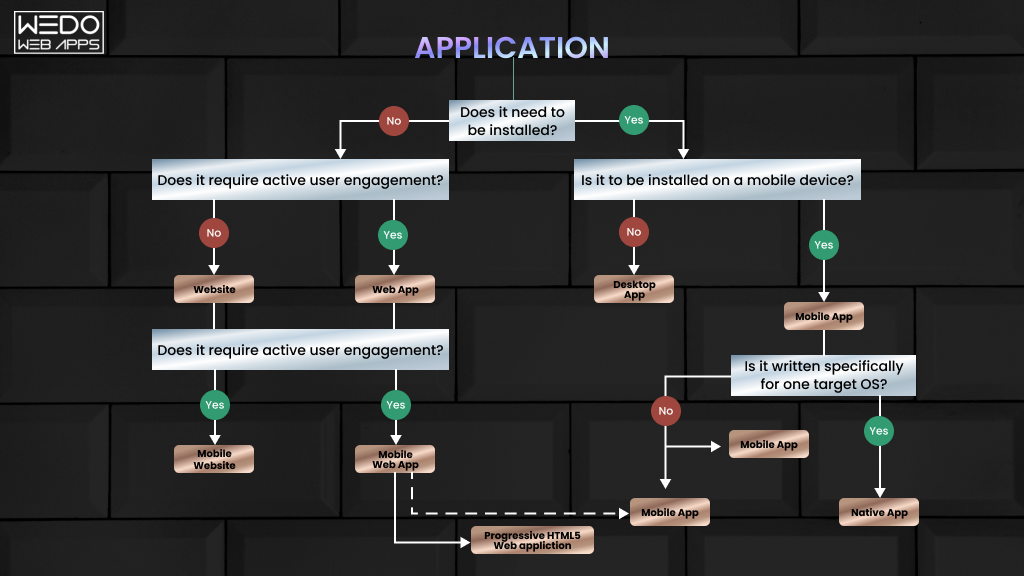
If you think mobile applications and desktop applications are more or less similar, then you cannot be more wrong. To make things easy and understandable, we have provided the differences between the two in the table below. Check it out:
| Desktop Application | Mobile Application | Web Application | |
|---|---|---|---|
| Platform | Runs on desktop computers (Windows, macOS, etc.) | Runs on mobile devices (iOS, Android, etc.) | Accessed through web browsers |
| Installation | Installed locally on the user’s computer | Installed from app stores | No installation required |
| Internet Access | Can operate offline | Requires an internet connection | Requires an internet connection |
| User Interface | Optimized for desktop screens and input devices | Optimized for mobile screens and touch input | Optimized for various screen sizes |
| Access | Accessed by launching the application | Accessed by tapping the app icon | Accessed through URLs |
| Performance | Utilizes system resources effectively | May have resource limitations on mobile devices | Depends on internet speed and server performance |
| Native Features | Can access and utilize native device features | Can access and utilize native device features | Limited access to native device features |
| Development | Developed using desktop-specific technologies and frameworks | Developed using mobile-specific technologies and frameworks | Developed using web technologies and frameworks |
Native vs Cross-Platform Desktop App Development
One of the first and most critical decisions in the desktop app development process is whether to go native or cross-platform. Each approach has distinct trade-offs in terms of performance, cost, time-to-market, and maintenance. Understanding the difference up front will directly influence your framework and language choice in the steps that follow.
Native Desktop Development
Native application development requires using tools and languages specific to a single operating system, for example, Swift or Objective-C for macOS, and C++ or C# for Windows. They compile directly to the OS’s machine code, which means they have unmatched performance and the deepest possible access to hardware and OS features.
Key advantages of native development:
- Maximum performance: direct hardware access with no abstraction layer overhead.
- Deep OS integration: full use of native APIs, notifications, file systems, and device hardware.
- Best UI fidelity: the app looks and behaves exactly like the OS’s native applications.
- Smaller app footprint: no bundled runtime or extra framework dependencies.
Best suited for: High-performance tools like video editors, CAD/CAM software, medical imaging systems, real-time industrial control software, and financial trading platforms.
| When to choose native: If your application demands maximum performance, direct hardware control, or must integrate deeply with OS-specific features (eg, macOS Keychain, Windows Registry), native development is the right path despite the higher cost of maintaining separate codebases. |
Cross-Platform Desktop Development
Cross-platform development allows you to write a single codebase and deploy across Windows, macOS, and Linux simultaneously. This significantly reduces the development time and cost, making it the go-to choice for the most modern business applications.
Leading cross-platform frameworks in 2026:
- Electron: JavaScript, HTML, CSS, PowerVS Code, Slack, and Discord. Ideal for teams with web development experience. This produces larger app binaries due to bundled Chromium.
- .NET MAUI: C# and XAML. Microsoft’s modern framework for Windows. macOS, iOS, and Android from a single codebase. Excellent for enterprise applications.
- Flutter Desktop: Dart language. Natively complied with consistent rendering across all platforms. Strong choice for a team already using Flutter for mobile.
- Tauri: Rust + Web technologies. A lightweight, security-focused alternative to Electron with significantly smaller app sizes and lower memory usage.
- Qt: C++ and Python (PyQt/PySide). The industry standard for complex, high-performing cross-platform GUIs. Used in VLC, Autodesk Maya, and Telegram Desktop.
Key advantage of cross-platform development:
- Single codebase, write once, deploy on Windows, macOS, and Linux.
- Lower development and maintenance costs.
- Faster time to market, no need to rebuild features per platform.
- Larger potential user base from day one.
Quick Decision Guide:
|
Reasons To Choose Desktop Application
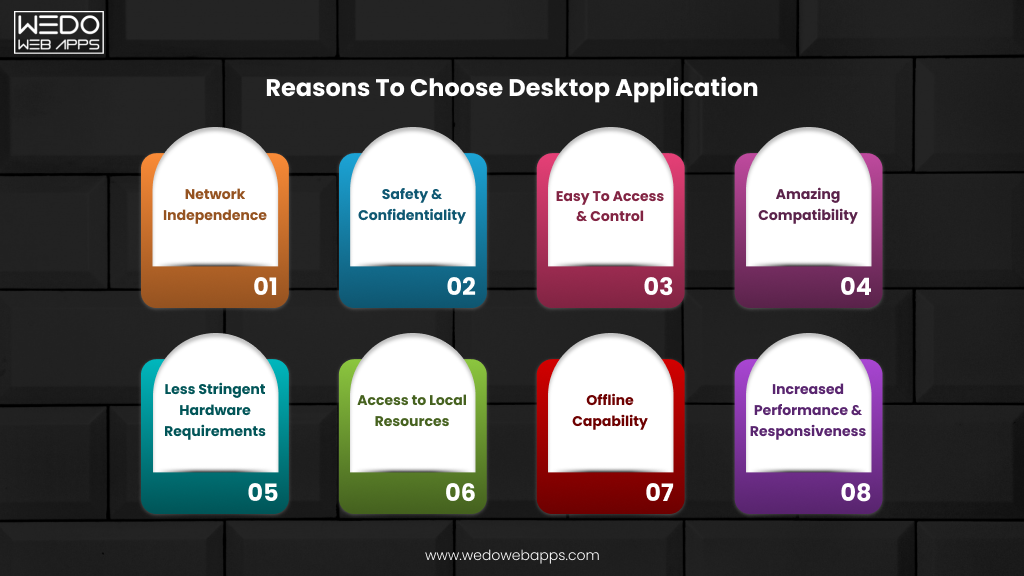
There are many advantages to choosing desktop applications over other types of software. Here are the top reasons to consider desktop applications for your needs:
Network Independence
Desktop apps can operate without an internet connection, allowing continuous offline access to functionality and data. This is useful when internet connectivity may be unreliable or limited.
Safety & Confidentiality
These applications run locally on the user’s computer, keeping sensitive data secure. They don’t support transmitting data over the Internet, making them ideal for handling confidential information and important work.
Easy To Access & Control
Users can customize desktop apps according to their specific needs, providing a personalized experience. They also have full control over app settings and preferences.
Amazing Compatibility
Desktop apps are designed for compatibility with underlying operating systems and hardware. They can leverage the system’s full capabilities and integrate seamlessly with other software.
Less Stringent Hardware Requirements
Desktop apps are developed to run efficiently even on older computers, expanding their reach to a broader audience base. Users do not need the latest hardware to access full functionality.
Access to Local Resources
Desktop apps can access local files, devices, and system features – allowing greater functionality like file manipulation, hardware integration, and platform-specific capabilities.
Offline Capability
Unlike web and mobile apps, desktop software ensures uninterrupted work even without internet connectivity, protecting productivity in areas with unreliable network access.
Increased Performance & Responsiveness:
By fully utilizing local system resources, desktop apps deliver faster processing, smooth interactions, and an optimized user experience. This helps in improving the performance and responsiveness of the desktop application.
Steps To Make A Desktop Application
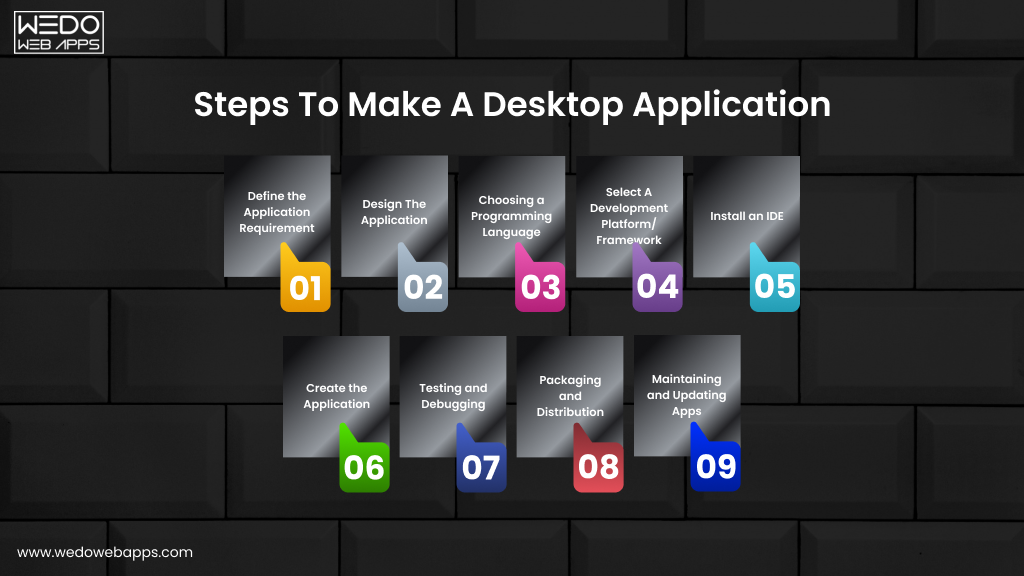
Here are the key desktop application development steps to develop a fully functional desktop application:
Step 1: Define the Application Requirement
This step involves understanding the purpose, features, and target audience and gathering stakeholder input. The requirements are then documented for reference during the development stages.
Step 2: Design The Application
At this stage, the application’s visual interface, navigation flows, interactions, and architecture are planned and prototyped using design tools.
Desktop application development tools that are used for designing:
- Moqups: When it comes to Moqups, it is a simple and powerful wireframing and prototyping tool. It is known for developing clickable prototypes, and that too without writing any code.
- Mockplus: Mockplus is a versatile prototyping tool that supports collaboration and user testing. It provides various widgets and templates to design interfaces.
- Adobe XD: Adobe XD is a leading design tool that helps bring designs to life with intuitive features for styling interactions and animations.
Mockingbird: Mockingbird is a full-fledged prototyping software for designing interfaces across platforms quickly with ready components.
| Tips that one should consider for design.
Tip 1: Focus on ease of use and function over aesthetic design initially. Ensure all requirements are addressed to help the users have their objectives fulfilled without any hassle. Tip 2: Consider user behavior and make interfaces intuitive with proper labeling, grouping, and navigation. It helps them use the application without any hassle and get their needs sorted. Tip 3: Design is responsive and adapts well across desktop, mobile, and other form factors. This can help you gain the attention of a bigger audience group. |
This covers the key aspects of designing desktop applications. In the next sections, the steps from programming to deployment are covered.
Step 3: Choosing a Programming Language
Check out the most popular programming languages taken into consideration for developing desktop applications:
- C/C++: C/C++ is a low-level language that provides full access and control over hardware. It is suited for resource-intensive or complex applications.
- C#: C# is used along with the .NET framework, making it ideal for Windows desktop development. It simplifies common tasks with robust libraries.
- Java: Java is highly portable and supports cross-platform development. It ensures applications run seamlessly across systems.
- Python: Python is a versatile scripting language known for simplicity. It has huge library support and facilitates rapid development.
C++: JavaScript combined with the Electron framework allows creating desktop apps using web technologies like HTML and CSS for cross-platform distribution.
Each language has strengths based on requirements like performance needs, platform support, etc. Proper evaluation helps choose the right programming language.
Some key factors to consider are:
- OS support: Choose a language supported by target OS platforms, like Windows, Mac, and Linux, to ensure compatibility.
- Capabilities: Consider if the application involves resource-intensive tasks, GUI, performance-critical code, etc., which aid language selection.
- Learning curve: Examine the learning effort and community support required for each option to be picked up by the team. Popular choices for desktops include C++, C#, Java, and Python due to their wide skill availability and extensive documentation.
Step 4: Select A Development Platform/ Framework
Frameworks provide pre-built components to accelerate the desktop app development process. Options include Electron for cross-platform JavaScript apps, Qt for C++ GUIs, GTK for Linux, and JavaFX for portable Java interfaces.
Evaluate framework features, documentation, community size, and alignment with requirements and programming language to select the most suitable choice.
Step 5: Install an IDE
An Integrated Development Environment bundles essential tools in one place, boosting productivity. For desktop development in C#, Python, Java, etc., install stable and feature-rich IDEs like Visual Studio, PyCharm, and IntelliJ, respectively.
These IDEs offer code completion, debugging, version control, and build system integration. The IDE streamlines coding, testing, and deployment activities.
Step 6: Create the Application
With prerequisites fulfilled, initiate the coding phase. Progress iteratively – define user interface scaffold using relevant graphical libraries, build application logic through functions and classes, and integrate data model layer for storage and retrieval.
Modularize code into well-designed, portable, and testable units. Routinely commit and back up code. Leverage available framework utilities to maximize efficiency.
Step 7: Testing and Debugging
Thorough testing ensures quality and defect-free software. Create test cases to validate features under varied inputs and edge conditions. Common techniques include:
- Unit testing with frameworks like JUnit – Isolate and automate verification of individual application components.
- Debugging tools and techniques – Simulate runtime errors, evaluate variable states, and trace execution flow using an IDE debugger and logging to squash bugs efficiently.
Step 8: Packaging and Distribution
Package the application and prerequisites as a standalone installable software bundle for each target platform. This includes:
- Platform-specific installation files – .msi for Windows, .dmg for macOS, etc., ensuring compatibility.
- Distribution through app stores or websites – Digital avenues like Microsoft Store, own website introduce the application to a wider audience base, leveraging their installation and update services.
Step 9: Maintaining and Updating Apps
This ongoing process strengthens program quality and user satisfaction:
- Version control and release management – Tools like Git facilitate code revisions, feature additions, and rollback through tagged releases.
- Engaging users with update notifications: Communicate new improvements and patches transparently through in-app notes or emails while respecting their choice. Bug squashing through continued testing is crucial.
A methodical, step-by-step approach that considers technical and non-technical factors translates abstract ideas into robust, full-fledged desktop applications loved by users. Regular maintenance keeps software relevant and secure over time.
Popular Frameworks To Develop Desktop Applications
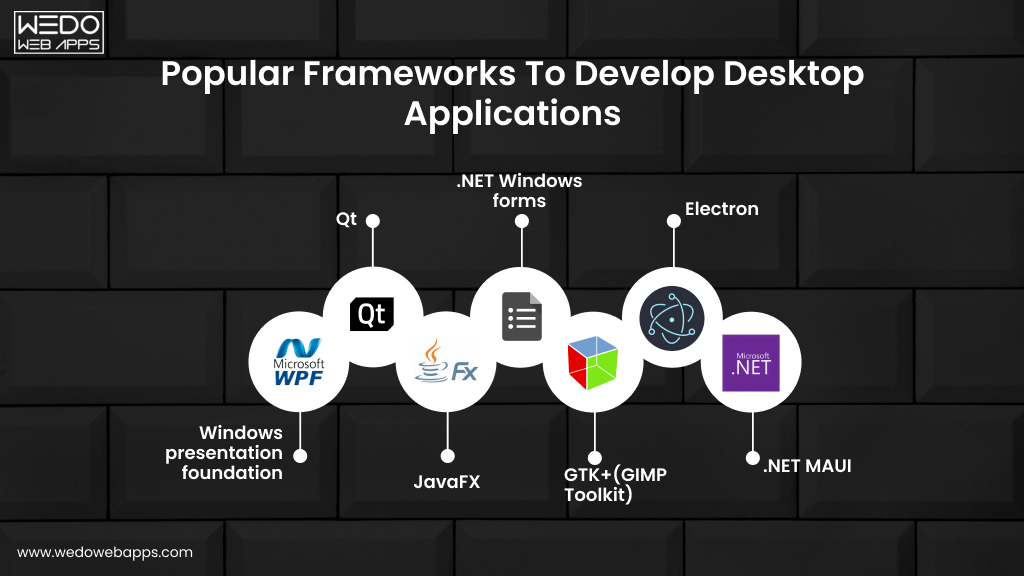
Frameworks accelerate development by providing reusable components and tools. Here is a desktop software development overview of major options for desktop application development:
Electron
- Open source framework for building cross-platform desktop applications using JavaScript, HTML, and CSS.
- Build desktop UIs using web technologies and distribute apps through package managers.
- Apps like VS Code and Slack are built with Electron.
WPF
- Microsoft framework for building desktop clients on Windows.
- Develop using XAML for declarative UI creation and C# for logic.
- Provides advanced 2D/3D graphics, media integration, and animations.
- Large community support with tools in Visual Studio.
WinForms:
- Microsoft’s oldest framework for creating Windows applications in .NET.
- Drag-and-drop interface building with robust controls.
- Simple to learn, but lacks the flexibility of WPF’s graphic rendering.
- Used for traditional Windows applications.
Cocoa:
- Apple’s native framework for OS X and iOS application development in Objective-C or Swift.
- Access platform APIs and build rich GUIs for macOS.
- Apple’s recommended way of building Mac software.
- Strong development tools in Xcode IDE.
Universal Windows Platform (UWP):
- Microsoft’s platform for creating Windows 10 desktop apps and beyond.
- Build once, deploy everywhere across Windows, Xbox, and HoloLens.
- Rich features like live tiles, notifications, and in-app purchases.
- Supports JavaScript, C#, Visual Basic, and C++.
Here is a quick comparison of all major desktop application frameworks to help you choose the right ones:
| Frameworks | Platform Support | Language(s) | Notable Apps | Best For |
|---|---|---|---|---|
| Electron | Windows, macOS, Linux | JavaScript, HTML, CSS | VS Code, Slack, Discord | Cross-platform; large app size |
| WPF | Windows only | C#, XMAL | Visual Studio, enterprise tools | Rich Graphics; Windows-only |
| Winforms | Windows only | C#, VB.NET | Legacy business apps | Simple; limited graphic rendering |
| .NET MAUI | Windows, macOS, iOS, Android | C#, XMAL | Enterprise cross-platform apps | Modern; Microsoft-backed |
| Qt | Windows, macOS, Linux | C++, Python (PyQt) | VLC, Telegram, Autodesk Maya | High-performance; mature ecosystem |
| Flutter Desktop | Windows, Linux, macOS | Dart | Emerging cross-platform apps | Single codebase for all platforms |
| Tauri | Windows, macOS, Linux | Rust + Web technologies | Lightweight secure desktop apps | Tiny footprint; security-focused |
| Cocoa/SwiftUI | macOS, iOS only | Swift, Objective-C | All native Apple apps | Best macOS/iOS UX; Apple-only |
| JavaFX | Windows, macOS, Linux | Java | Enterprise Java desktop tools | Portable; good for Java teams |
| UWP | Windows 10/11, Xbox | C#, JavaScript | Modern Windows Store apps | Deep Windows integration |
Role of AI and Cloud in Modern Desktop Application Development
The desktop application development landscape has fundamentally shifted in recent years. In 2026, AI app development and cloud connectivity are no longer optional features; they are baseline expectations in competitive desktop software. Understanding how to incorporate these capabilities will set your application apart from legacy tools.
AI & Machine Learning Integration
Modern desktop applications are increasingly AI-powered, enabling capabilities that were impossible even three years ago. Here is how AI is being embedded into the desktop app development process today:
- Intelligent Automation: Desktop apps can now automate repetitive tasks such as data classification, report generation, document processing, and workflow routing using on-device machine learning models, with no cloud dependency required.
- Predictive Analytics: Embedded ML engines analyze local datasets in real-time and surface actionable insights directly within the application. This is particularly powerful in finance, logistics, and manufacturing software, where latency matters.
- Natural Language Processing (NLP): Voice commands, smart search, and AI-generated content suggestions are being built into desktop tools using lightweight on-device NLP models, improving productivity without sending sensitive data to external servers.
- Computer Vision: Application in healthcare, security, and industrial inspection uses desktop-based computer vision to process camera feeds and image data locally with low latency, a key advantage over cloud-deployment alternatives.
- AI-Assisted Development: The desktop app development process itself has been transformed by AI tools. Coding assistants like GitHub Copilot, integrated directly into IDEs, help developers write, review, and debug code significantly faster.
A study has found that nearly 58% of developers continue to prioritize desktop app development due to its ability to run AI workloads locally, leveraging GPU and CPU resources that cloud-based apps simply cannot match.
Cloud Connectivity & Synchronization
While desktop applications are valued for their offline capabilities, modern users expect seamless data synchronization when connectivity is available. The best desktop software combines the reliability of local operation with the convenience of cloud integration:
- Real-time data sync across devices, users work offline, and changes automatically sync to the cloud when connected.
- Collaborative features where multiple team members can interact with shared data, even when individual users are temporarily offline.
- Cloud-based update delivery ensures users always have the latest version without manual downloads, using silent background update mechanisms.
- Secure cloud backup, sensitive local data is encrypted and backed up to the cloud, protecting against local hardware failure.
- SaaS licensing integration, subscription management, feature entitlements, and usage analytics via cloud APIs without requiring full cloud dependency.
| Best Practices: Design your desktop application with an ‘offline-first’ architecture. Build core functionality to work entirely without the internet, then layer cloud features on top as enhancements. This gives users the best of both worlds and future-proofs the app against connectivity changes. |
Security Considerations for AI-Powered Desktop Apps
Integrating AI and cloud features introduces new security responsibilities in the desktop app development process:
- On-device AI models should be protected against reverse engineering and model extraction attacks.
- Cloud API communications must use encrypted channels (TLS 1.3+) with certificate pinning.
- User data processed by AI features must comply with GDPR, HIPAA, or relevant regional data privacy regulations.
- Regularly audit third-party AI libraries and SDKs for known vulnerabilities as part of ongoing maintenance.
Cost of Creating Desktop Applications
Developing professional desktop applications requires substantial investment but offers long-term benefits:
- Depending on complexity, planning and design costs vary from $5,000 to $30,000.
- For a minimum viable app, budget $25,000-$50,000 for a 3-6 month development timeline.
- Adding features, testing, and debugging may increase costs to $50,000-$100,000 on average.
- Maintaining and upgrading apps over the years costs 10-15% of the original budget annually.
- Hiring experienced, dedicated developers costs $50-100 per hour for contracting or $80,000-150,000 annually.
- Overall, development is more expensive than web/mobile, but desktop software has longer life cycles.
Common Mistakes to Avoid in Desktop App Development
Even experienced developers run into costly pitfalls while following the desktop application development steps. Being aware of these mistakes before you start can save significant time, money, and frustration, which leads to a much better end product.
1. Skipping or Rushing the Requirements Phase
Jumping straight into coding without a thoroughly documented specification is the single biggest cause of desktop application project failure. Vague requirements lead to scope creep, rework, and missed deadlines. Before writing any code, clearly document the target operating systems, hardware requirements, offline vs online behavior, user roles, performance benchmarks, and security requirements. Getting this right upfront is far cheaper than fixing it mid-development.
2. Choosing the Wrong Framework for the Job
Selecting a framework based purely on team familiarity rather than project requirements is a common and costly mistake in the desktop app development process. For example, Electron is an excellent choice for cross-platform development with web-savvy teams, but it bundles a full Chromium engine, resulting in large app sizes and higher RAM usage. If app footprint and performance are priorities, Tauri or a native approach would serve you better. Always evaluate frameworks against your specific requirements before committing.
3. Ignoring Desktop-Specific UX Patterns
Desktop applications can have their own UX conventions that are very different from mobile or web apps. Applying a mobile-first or web-first design mindset to a desktop app produces an unprofessional experience. Design specifically for desktop interaction patterns from the start, and always test with real desktop users.
4. Neglecting Performance Profiling Early
Desktop applications have direct access to powerful local hardware, but poor memory management, inefficient algorithms, and unoptimized rendering can still cause crashes, freezes, and sluggish performance that frustrate users. Research shows that 68% of users will uninstall an application that performs poorly or crashes frequently. Use profiling tools early and regularly throughout development, not just at the end, to catch bottlenecks before they reach your users.
Recommended profiling tools by language:
- C# / .NET: Visual Studio Diagnostic Tools, dotMemory
- Java: JProfiler, VisualVM
- Python: Py-Spy, cProfile
- C++: Valgrind, Visual Studio Profiler, Perf (Linux)
- JavaScript / Electron: Chrome DevTools (built into Electron), clinic.js
5. Underestimating Security on the Client Side
Many development teams invest heavily in securing the cloud backend but treat the desktop client as an afterthought. This is a serious mistake. Desktop applications that store sensitive data locally must implement encryption at rest for all stored data, code signing to prevent tampering and verify authenticity, secure auto-update mechanisms that verify package integrity before installation, and protection against reverse engineering for applications with proprietary business logic. This is especially critical in healthcare, financial, legal, and industrial software, where data breaches carry regulatory and financial consequences.
6. Not Planning for Distribution and Updates from Day One
Developers often spend months building a great application only to discover at the end that distribution is more complex than anticipated. Different operating systems have different packaging requirements (.msi or .exe for Windows, .dmg or .pkg for macOS, .deb or .AppImage for Linux), different app store review processes, and different code signing requirements. Plan your distribution strategy at the start of the project, not at the end. Additionally, build an auto-update mechanism into the application architecture from the beginning, so users should receive bug fixes and security patches seamlessly, without having to manually download and reinstall.
7. Skipping Accessibility
Accessibility is frequently overlooked in desktop application development, but is increasingly a legal requirement in many markets (ADA compliance in the US, EN 301 549 in the EU). Beyond compliance, accessible applications reach a wider audience and are generally better designed overall. Ensure your app supports full keyboard navigation, works correctly with screen readers (NVDA, JAWS, VoiceOver), maintains sufficient color contrast ratios (WCAG 2.1 AA), and provides text scaling without layout breakage. These considerations are far easier to build in from the start than to retrofit later.
Future of Desktop Applications
While cloud-based and mobile applications have seen tremendous growth in recent years, desktop applications will continue to play an important role in the future. This desktop application development guide would be incomplete without a look at where the industry is headed. According to a survey conducted by SplashData in 2022, over 80% of knowledge workers worldwide still rely on desktop applications daily for their productivity needs.
Some key trends that will shape the future of desktop applications include:
Enhanced Security:
With work becoming more distributed and businesses storing sensitive data locally, security will be a major priority for desktop applications going forward. Technologies like application containers and sandboxing will become more widely adopted to isolate potentially vulnerable third-party software and prevent data breaches.
The container market alone is expected to grow at a CAGR of over 25% through 2028 as these technologies provide stronger defense against emerging cyber threats. Leading application developers will focus on building security features like code signing, application shielding, and runtime application self-protection natively into their products.
Specific Use Cases:
While many routine tasks will shift online, desktop applications are uniquely suited to handle data-heavy workflows that require access to local computing resources.
Creative professionals working with multimedia files, 3D modeling, video/image editing, and scientists involved in data analysis will continue relying on desktop software that can harness the full processing power of high-end workstations.
About 45% of the creative/design workforce is forecast to exclusively use desktop applications through 2030 for projects involving very large or complex data sets that would be inefficient to handle in the cloud.
Another area is enterprise/industry use cases like CAD/CAM, lab automation, medical imaging, and real-time analytics in manufacturing plant floors, which depend on low-latency access to local peripherals, sensors, and hardware.
Customization and Integration:
Large enterprises have complex and customized business processes spanning different internal departments, and off-the-shelf SaaS may not always meet these specialized requirements.
Top desktop application vendors are focusing on sophisticated customization capabilities like visual workflow/form builders, plug-in architectures, and powerful APIs to integrate seamlessly with line-of-business systems, ERPs, industrial equipment, IoT devices, as well as customize UX for niche enterprise needs.
Today, companies around the world depend on internally customized/developed desktop apps, and this trend is likely to continue as businesses demand tightly integrated, configurable solutions tailored for their industry.
User-Friendly Interfaces:
To compete with the slick interfaces of mobile/web apps and gaming platforms, desktop UX will see increased innovation around visual design, animations, gesture controls, and input modalities to enhance engagement and productivity.
Concepts like Interactive Canvas, Morphic UI, and 3D modeling interfaces are opening up new possibilities beyond the traditional window-icon-menu-pointer (WIMP) paradigm.
Progressive Web Apps (PWAs) also provide an evolution path for desktop experiences through service workers, responsive design, and push notifications.
Most productivity suites and creative tools are expected to adopt contemporary designs inspired by digital illustration/sketching tools, taking advantage of the large displays and input methods on workstations.
Offline Access:
While cloud services promise reliable online access in typical office environments, disconnected use cases will remain critical for scenarios involving unpredictable network availability – such as telecommuting, field work, transportation, remote/rural places, emergencies, and military applications.
Industries like manufacturing, utilities, aviation, Oil & Gas, that mandate operational continuity even in harsh terrains/conditions will keep requiring robust offline capabilities.
This is likely to drive further investment in innovation around local/peer-to-peer syncing, low-bandwidth operation, predictive caching, drawing data from local/embedded databases, and optimizing UX for limited functionality without an internet connection.
By 2028, desktop apps in sectors requiring airtight operations in disconnected environments are expected to offer full offline mirroring of key cloud services and synchronization once back online.
Conclusion:
Today, desktop applications are used by lots of companies and individuals in their everyday lives. Whether you are learning how to develop a desktop application for the first time or refining your existing skills, the key is to follow a structured desktop app development process from requirement gathering to distribution and maintenance.
Users use it for a variety of purposes, including accessing the latest information and forecasts for weather, as well as managing their finances and playing video games, etc.
These applications are also employed by web app developers and companies, such as banks desktop applications, which give access to accounts of customers and transaction information. Building software is an iterative learning experience.
We hope this guide has provided a good starting point to get you developing exciting desktop applications.
Just keep practicing, learning from mistakes, and ensuring user-centered design in the software. This will help you in creating great software in no time that people will love using. However, most importantly, have fun while developing!

 Sharing Project Details
 Let's have a
call
Let's have a
call Got
Questions? Let’s Chat!
Got
Questions? Let’s Chat!